
This is a follow up to my previous post: Moving Files with SharePoint Online REST APIs in Microsoft Flow, which explains how to move/copy files with Microsoft Flow using the SharePoint - Send an HTTP request to SharePoint action and the SharePoint Online SP.MoveCopyUtil REST API.
This post demonstrates using a similar approach, but using the CreateCopyJobs and GetCopyJobProgress APIs to copy files from one site collection to another.
I suggest reading the previous post first for context if you haven't already.
Update: Flow now includes both 'Copy file' and 'Move file' actions which implement the functionality described in this post for you. Much easier!
While Flow already has a SharePoint - Copy file action, this is limited to copying within the same site (source and destination URLs are web-relative).
At the time of writing there isn't a SharePoint - Move file action.
| Feature | CreateCopyJobs |
SP.MoveCopyUtil |
|---|---|---|
| Cross-site collection move/copy | Yes | Yes |
| Copy list item field values | Yes | Yes |
| Copy version history | Yes | No |
| Overwrite destination file | No | Yes |
While SP.MoveCopyUtil can overwrite an existing destination file, CreateCopyJobs can't. If you try to overwrite an existing destination file with CreateCopyJobs, the subsequent request to GetCopyJobProgress will return an error (within the Logs array), which will cause the Flow demonstrated in this post to terminate with status: Failed.
This Flow can be triggered from a single selected file in a document library to create a copy of that file in a document library in another site collection.
In reality this functionality would probably be more useful as part of a larger process (e.g. an approval workflow) and could be made reusable (triggered from multiple other Flows) by replacing the SharePoint - For a selected item trigger with the Request - When a HTTP request is received trigger - see the nested flow pattern.
- Create a new blank Flow and add the
SharePoint - For a selected itemtrigger:

- Enter the source SharePoint site URL in the
Site Addressfield viaEnter custom valueor by selecting your site from the drop-down if your site is listed there. - Enter your library GUID in the
List Namefield.- This is required because the
List Namecontrol can't currently resolve library names. - You can retrieve a library GUID from the URL of the library's settings page, which will be something like
_layouts/15/listedit.aspx?List=%7B62f3e702-edd9-4a87-a469-60bb76c0784c%7D. The decoded List query string parameter in this example is{62f3e702-edd9-4a87-a469-60bb76c0784c}, but you're only interested in the value inside the curly braces, which is after%7Band before%7Din the library settings URL.
- This is required because the
This action allows you to retrieve more information about the selected item, such as the file URL.
- Add the
SharePoint - Get file propertiesaction:
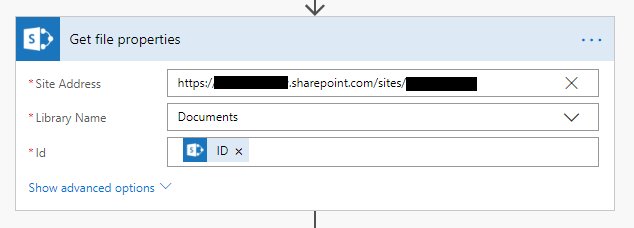
- Enter the source SharePoint site URL in the
Site Addressfield viaEnter custom valueor by selecting your site from the drop-down if your site is listed there. - Select your document library for the
Library Namefield. - Select the
IDvalue from theFor a selected itemtrigger output for theIdfield.
- Add a
Data Operations - Composeaction and rename toCompose CreateCopyJobs body:
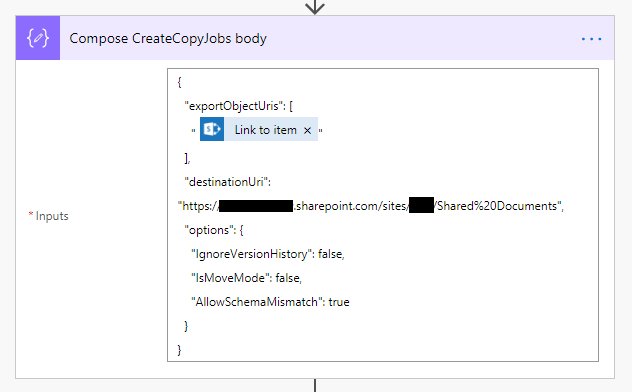
- Paste the following JSON as the Inputs value:
{
  "exportObjectUris": [
    "@{body('Get_file_properties')?['{Link}']}"
  ],
  "destinationUri": "https://tenant.sharepoint.com/sites/siteName/Shared%20Documents",
  "options": {
    "IgnoreVersionHistory": false,
    "IsMoveMode": false,
    "AllowSchemaMismatch": true
  }
}- The
exportObjectUrisarray item here is theLink to itemoutput from theGet file propertiesaction. If yourGet file propertiesaction has a different name, you'll need to adjust accordingly, or just selectLink to itemusing the Flow UI. - Set the appropriate
destinationUriabsolute library URL value. Here the destination library is hard-coded, but you could set this dynamically based on some logic in the Flow. IgnoreVersionHistory:falsemeans that version history will be copied.IsMoveMode:falsemeans that the source file will not be deleted after the copy. Set this totrueif you want the source file to be deleted once the file has been copied.AllowSchemaMismatch:truemeans that the file will be copied (rather than the API throwing an error) in the event that some fields from the source item are missing in the destination library. Set this tofalseif you want the copy operation to throw an error instead in this scenario.
This action will add the copy operation to a queue.
- Add a
SharePoint - Send an HTTP request to SharePointaction and rename toCreateCopyJobs:

- Configure the action as follows:
| Property | Value |
|---|---|
| Site Address | The source SharePoint site URL |
| Method | POST |
| Uri | _api/site/CreateCopyJobs |
| Headers | See Headers table below |
| Body | The Output of the previous Data Operations - Compose action |
| Name | Value |
|---|---|
| Accept | application/json; odata=nometadata |
| Content-Type | application/json; odata=verbose |
- Add a
Data Operations - Parse JSONaction and rename toParse CreateCopyJobs response(this name will be referenced later in an expression):

- Select the
Bodyoutput from the previousCreateCopyJobsaction as theContentfield value. - Paste the following JSON as the
Schemafield value:
{
    "type": "object",
    "properties": {
        "value": {
            "type": "array",
            "items": {
                "type": "object",
                "properties": {
                    "EncryptionKey": {
                        "type": "string"
                    },
                    "JobId": {
                        "type": "string"
                    },
                    "JobQueueUri": {
                        "type": "string"
                    }
                },
                "required": [
                    "EncryptionKey",
                    "JobId",
                    "JobQueueUri"
                ]
            }
        }
    }
}These actions set up the variables and data needed for the following do until loop.

This variable is used in a do until loop to exit once the copy operation has completed.
- Add a
Variables - Initialize variableaction and rename toSet CopyJobComplete. - Set the action
TypetoBoolean. - Set the action
Valuetofalse.
This action creates the JSON body needed for the GetCopyJobProgress request within the do until loop.
- Add a
Data Operations - Composeaction and rename toCompose GetCopyJobProgress body. - Paste the following (incomplete) JSON into the
Inputsfield:
{
  "copyJobInfo":
}- To set the
copyJobInfoproperty value, position the keyboard cursor on the right-side of the:character (as if you are about to type the value), then enter the following Flow expression into the expression dialog and click Update:
first(body('Parse_CreateCopyJobs_response')?['value'])
- This sets the value of
copyJobInfoto the first item in theCreateCopyJobsresponse'svaluearray, which is an object containing theEncryptionKey,JobIdandJobQueueUriproperties required for making requests against theGetCopyJobProgressAPI. - The
Compose GetCopyJobProgress bodyaction should look like the image above.
This array variable is used to store the results of the GetCopyJobProgress requests that are made with the do until loop.
- Add a
Variables - Initialize variableaction and rename toSet GetCopyJobProgressResults. - Set the action
TypetoArray. - Set the action
Valueto[].
This section of the Flow uses a do until loop and the GetCopyJobProgress API to check if the copy operation has completed and retrieve related logs. If the copy hasn't completed, the loop will wait for 5 seconds before checking again, until the Count number of iterations has been reached, or the Timeout time exceeded.
- Add a
do untilloop action and rename toWait for copy job to complete. - For the condition, select the
Copy job completevariableis equal toand the expressiontrue. - Expand the
Change limitssection. - Specify a
Countvalue such as10. This is how many times the GetCopyJobProgress request will be sent before giving up, with a 5 second delay in-between each request, meaning timeout after 50 seconds. You can increase the delay and/orCountvalue if dealing with larger files. - Optionally adjust the
Timeoutvalue to something appropriate such asPT15M- 15 minutes. It's not super important to set a specific value for this, provided it's longer thanCount * 5, as the loop will end on whichever condition is met first (number of iterations or total time). - See https://en.wikipedia.org/wiki/ISO_8601#Durations for more details on valid values for
Timeout.
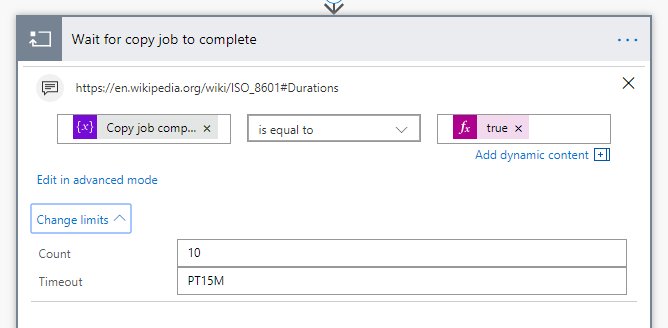
- The next step is to add actions within the loop, so that it looks like the following image:

- Add a
SharePoint - Send an HTTP request to SharePointaction and rename toGetCopyJobProgress:
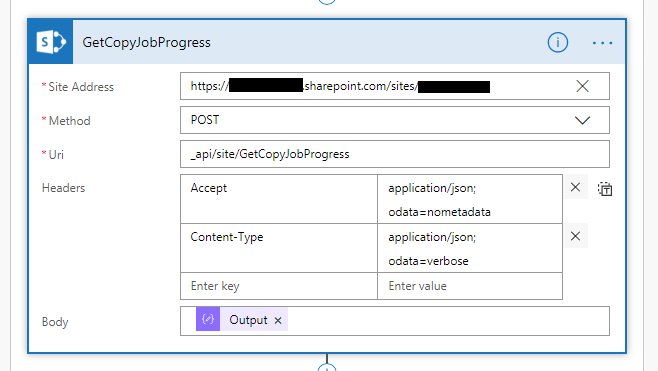
- Configure the action as follows:
| Property | Value |
|---|---|
| Site Address | The source SharePoint site URL |
| Method | POST |
| Uri | _api/site/GetCopyJobProgress |
| Headers | See Headers table below |
| Body | The Output of the Compose GetCopyJobProgress body action |
| Name | Value |
|---|---|
| Accept | application/json; odata=nometadata |
| Content-Type | application/json; odata=verbose |
- Add a
Data Operations - Parse JSONaction and rename toParse GetCopyJobProgress response:
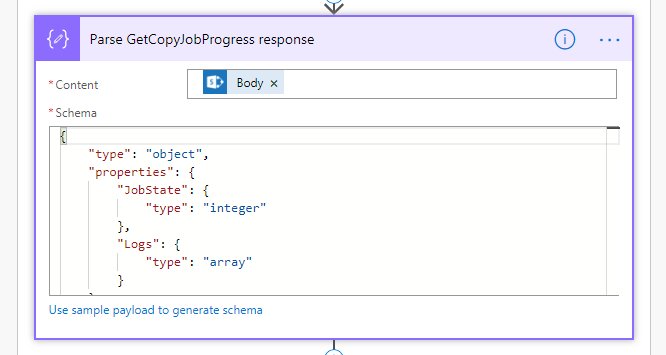
- Select the
Bodyoutput from theGetCopyJobProgressaction as theContentfield value. - Paste the following JSON as the
Schemafield value:
{
    "type": "object",
    "properties": {
        "JobState": {
            "type": "integer"
        },
        "Logs": {
            "type": "array"
        }
    }
}- Add a
Variables - Append to array variableaction and rename toAppend to GetCopyJobProgressResults:

- For
NamespecifyGetCopyJobProgress results. - For
Valuespecify theBodyoutput of theParse GetCopyJobProgress responseaction.
This condition checks to see if the copy operation has completed and either updates the Copy job complete variable to true (which exits the loop), or waits for 5 seconds before the next iteration.
- Add a Condition and rename to
If CopyJobComplete:
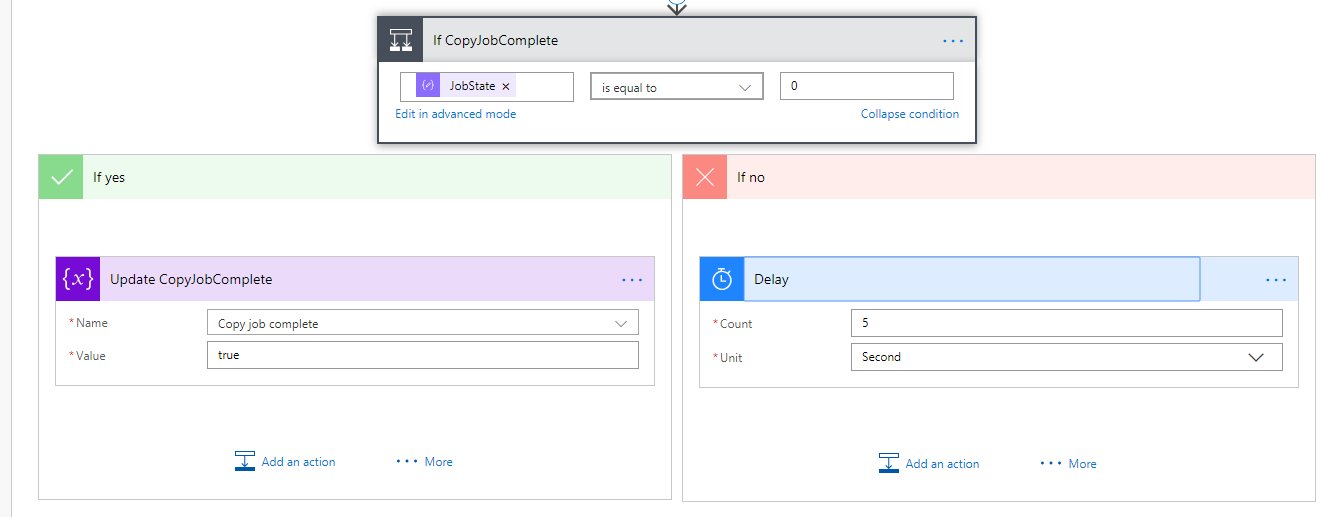
- For the condition, enter
JobStatefrom theParse GetCopyJobProgress responseaction withis equal toselected and the value0. - In the
Yesbranch, add aVariables - Set variableaction which updates theCopy job completevariable value totrue. - In the
Nobranch, add aSchedule - Delayaction, withCount:5andUnit:Second.
The finished Wait for copy job to complete loop should look like this (with child actions collapsed):
The two 'Log' actions shown here are Data Operations - Compose actions which are used as a way to inspect the value of variables at a particular point in the Flow when looking at a Flow run (e.g. when debugging). This is a neat trick I picked up from John Liu - cheers John!
The All logs array variable will store reformatted Logs returned by the GetCopyJobProgress API, where the Logs array JSON string values are converted to JSON objects (making them easier to work with).

- After the
Wait for a copy job to completeloop, add aData Operations - Composeaction and rename toLog CopyJobComplete. - Set the
Inputsvalue to theCopy job completevariable. - This makes it easy to tell for a particular Flow run whether the copy completed within the specified timeout or not.
- Add a
Data Operations - Composeaction and rename toLog GetCopyJobProgressResults. - Set the
Inputsvalue to theGetCopyJobProgress resultsvariable. - This gives a view of the
GetCopyJobProgressAPI results (before doing some additional processing, in case there are any errors with this).
- Add a
Variables - Initialize variableaction and rename toSet AllLogs. - Set the
NametoAll logs. - Set the
TypetoArray. - Set the
Valueto[].
- Add an
apply to eachloop and rename toProcess GetCopyJobProgress results:
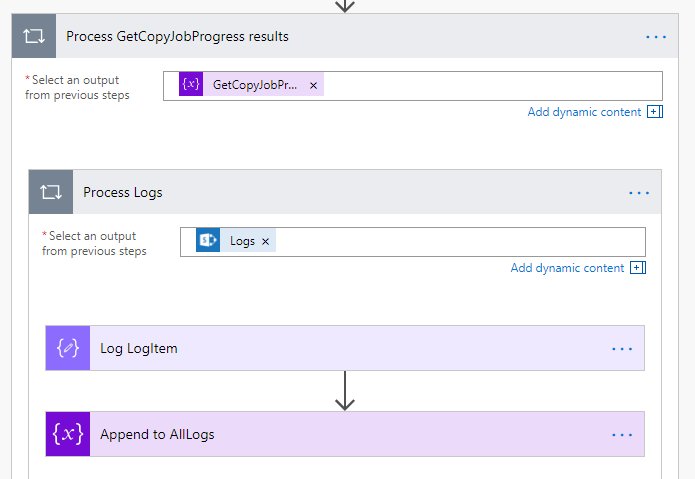
- For the
Select an output from previous stepsfield, select theGetCopyJobProgress resultsvariable - as the name suggests, this is looping over the responses of the GetCopyJobProgress API requests. - Add another
apply to eachloop within theProcess GetCopyJobProgress resultsloop and rename toProcess Logs. - For the
Select an output from previous stepsfield of theProcess Logsloop, enter the expressionitems('Process_GetCopyJobProgress_results')['Logs']- here we are looping over the Logs in each GetCopyJobProgress response.
Here we want to convert each Logs entry from a JSON string into an object, view the object and add it to the All logs array:
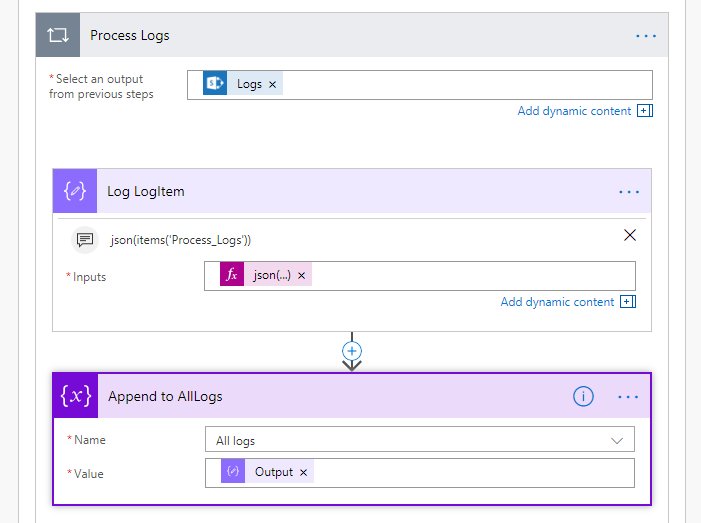
- Add a
Data Operations - Composeaction and rename toLog LogItem. - Set the
Inputsvalue to the expressionjson(items('Process_Logs'))- this converts the string to an object. - Add a
Variables - Append to array variableaction.- For
NameselectAll logs. - For
Valueselect theOutputof theLog LogItemaction.
- For
As the heading suggests, we want to use the Data Operations - Compose action to display the value of the All logs variable (for debugging when looking at a Flow run), and create another array that only contains errors - this is useful both for inspection during debugging and subsequent logic based on whether or not there were any errors:

- Add a
Data Operations - Composeaction and rename toLog AllLogs. - Set the
Inputsvalue to theAll logsvariable.
- Add a
Data Operations - Filter arrayaction. - For the
Fromfield, select theAll logsvariable. - For the condition, enter the expression
item()['Event']withis equal toand a value ofJobError.
The final step of the Flow is a condition which allows handling copy success or failure. In this example we're terminating the Flow as a Failure if there was an issue, so that it's obvious from the Flow history when something has gone wrong. You may want to expand on this, depending on your requirements:
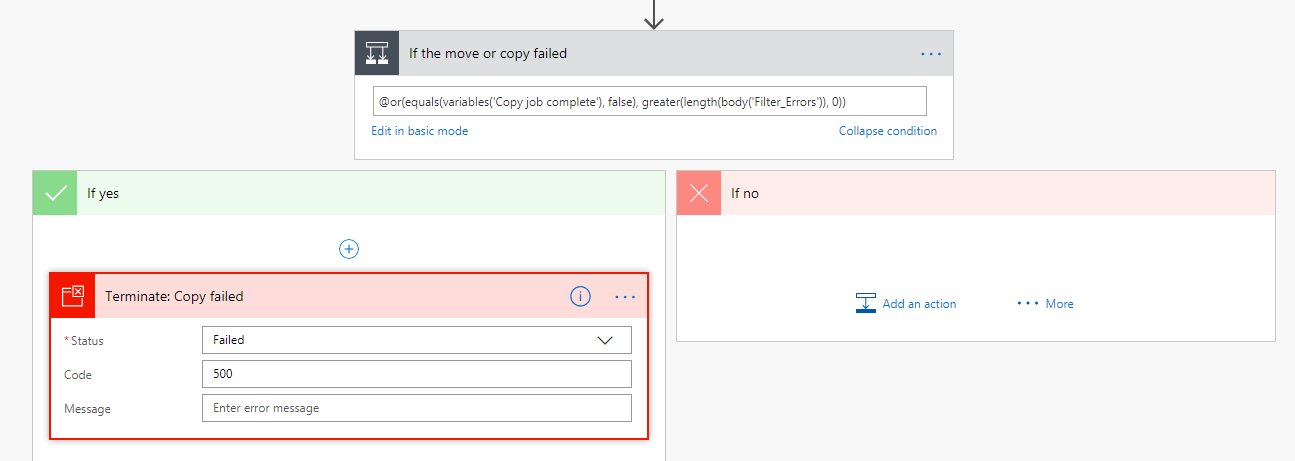
- Add a condition and rename to
If the move or copy failed. - Click on
Edit in advanced mode. - Paste the following expression:
@or(equals(variables('Copy job complete'), false), greater(length(body('Filter_Errors')), 0))
- The above expression says: If
Copy job completeis equal tofalse(probably indicating a timeout) OR if there were some errors returned in the GetCopyJobProgress Logs, enter theYesbranch, otherwise enter theNobranch. - Add a
Control - Terminateaction to theYesbranch. - Optionally specify a
CodeandMessage, but these aren't really needed, as you can look at the Flow run (particularly the output of theLog AllLogsandFilter Errorsactions) for details if the Flow fails. - Any actions that should take place after a successful copy should ideally go after the
If the move or copy failedcondition (rather than in theNobranch) to keep things as clean as possible.
Hopefully someone finds the above useful 🙂


@SirLac - Good stuff, I would guess (from the error message) that perhaps one of the URL parameters needs encoding - e.g. a space character (
%20.The 'Get file properties' Flow action can be used to get the properties for a file (using site URL, library name and item ID) and returns a 'Link to item' property which is the encoded URL of the file - this might be helpful.
Not sure if you'd need to strip off the query string or not - an example of this property value:
https://tenant.sharepoint.com/sites/SiteCollection/Shared%20Documents/File%20Name.xlsx?d=w50dd2f1b589c4026b93df9ea45c8cd20In terms of troubleshooting, as I said above, I would attempt to trigger the API request you want to emulate in Flow via the browser first and then compare the successful API request (body) with your failing request to see if you can spot what's different.