Consider disabling the High Resolution Textures DLC before you install the game. Those textures can cause problems with the ICE mod, see below, but are also of marginal value on the Deck's smaller screen while almost doubling the size of the installed game (Adds 48GB to the base game's 56GB). Again, do not install the texture pack DLC if you plan to use the ICE mod.
Go into the ... menu while Monster Hunter World is running. Select the Performance tab, then set these values:
Per-game settings: On
Framerate Limit: Unlimited
Refresh Rate: 30
Allow Tearing: On
TDP Limit: On
Watts: 8
Manual GPU Clock: On
GPU Clock Frequency: 1000
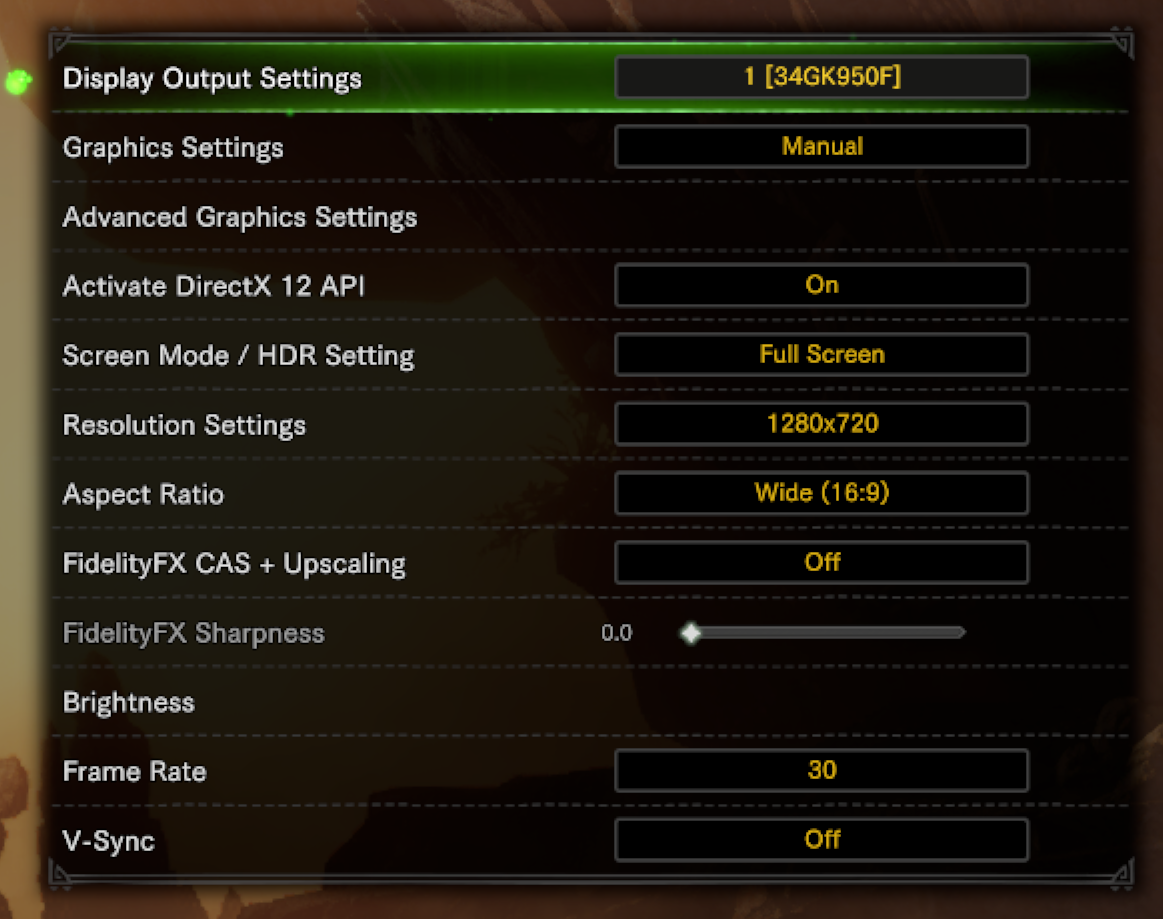
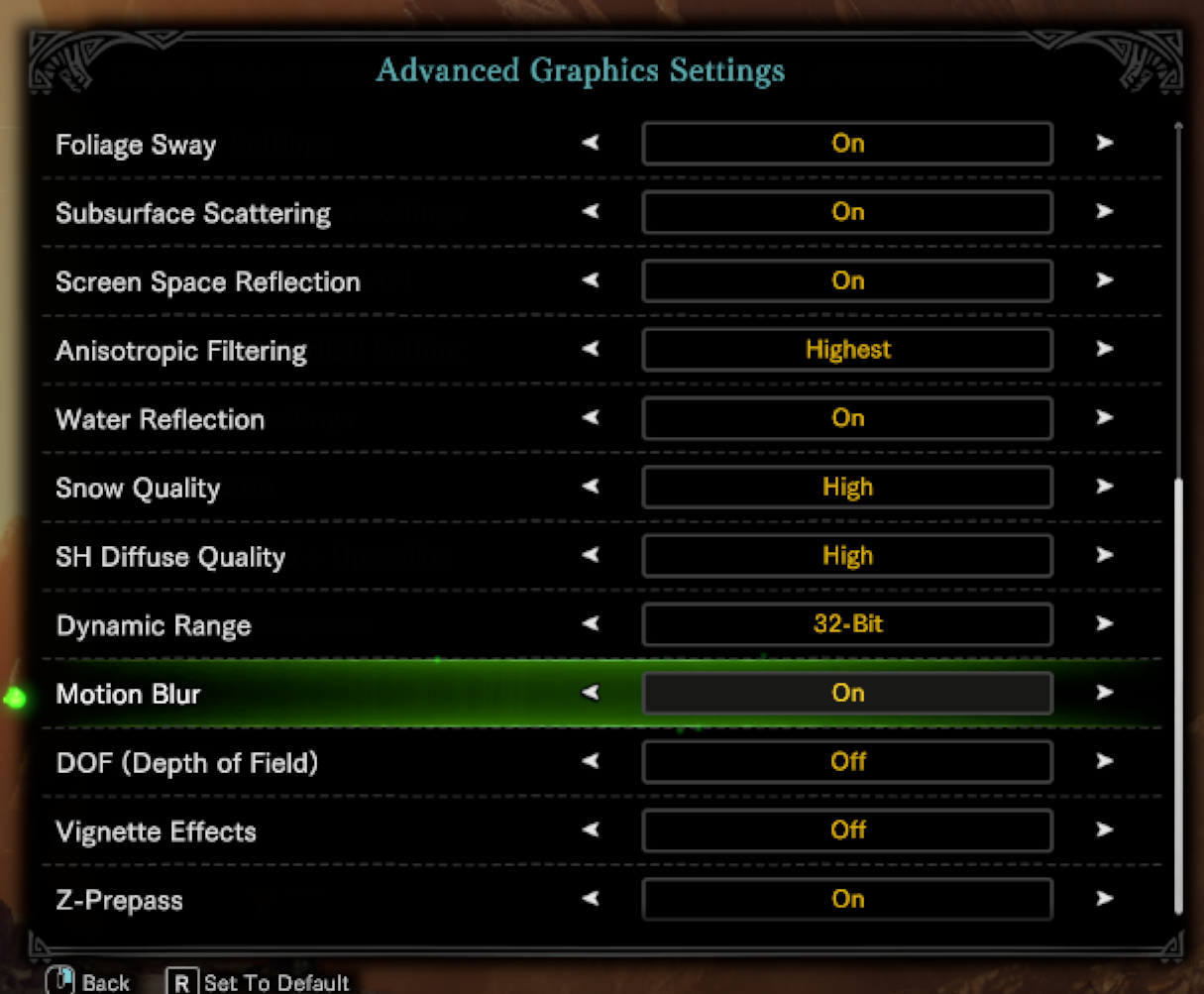
Then go into the game's Settings > Display settings and set them to be as in the images below. Do this before you load a save as the Texture Quality options are not available once you're playing the game. The last 2 images are from selecting the Advanced Graphics Settings option in the first image. These settings max out most of the options other than Volume Rendering Quality which is both expensive and doesn't make much of a difference visually.
Using 1280x720 instead of the Deck's native 1280x800 is recommended since you will get a wider image with a 16:9 resolution as compared to a 16:10 resolution, which is good for games with sweeping vistas like World.
The game will hold a rock solid 30 fps while using 14-18W of power on average with these settings, good enough for 2-2.5 hours on battery which is great for a game like World with its detailed maps and all the simulation going on in the background.
40fps is easily achievable too, if you prefer the higher framerate coupled with the Deck's 40Hz refresh rate (or the 80Hz mode the OLED version will bring). But you may need to lower some of the graphics settings in the images below.
You can also use the game's built in Fidelity FX Upscaler to run the game at 90% resolution which will give you a 19% reduction in rendered resolution and a reduction in battery usage - very useful if you're planning to run at 40 or 60 fps.
The ICE mod works well with the Steam Deck. Follow the steps in the #unsupported-patches channel in the Discord.
Note that you cannot just run the ICE Manager as you would on Windows! You must follow the instructions in the Discord precisely.
Most importantly you must not have the High Resolution Textures DLC active. Disable it before you install World on the Deck. If you had it active, you must both disable it and then delete the chunkHiPC folder before you install ICE itself.
Happy hunting!