
You may skip the tl;dr section an start with the Setup instantly.
This tutorial describes how to setup a Win32 API1 development environment on Windows (where else 😉). The goal is to create a setup with publicly available (open-source) tools:
- Download the latest Mingw-w64 release4 (x86_64-XX.x.x-release-win32-seh-rt_v10-rev0.7z).
- Extract the content to
C:\Dev - Add
C:\Dev\mingw64\binto your%PATH%environment variable.
- Extract the content to
- Download the latest CMake Windows x64 ZIP2 package.
- Extract the content to
C:\Dev - Add
C:\Dev\cmake\binto your%PATH%environment variable.
- Extract the content to
- Install Visual Studio Code3.
- C/C++ Extension Pack
>cmake --version
cmake version 3.23.2

CMake suite maintained and supported by Kitware (kitware.com/cmake).
>g++ --version
g++ (x86_64-win32-seh-rev0, Built by MinGW-W64 project) 12.2.0
Copyright (C) 2022 Free Software Foundation, Inc.
This is free software; see the source for copying conditions.  There is NO
warranty; not even for MERCHANTABILITY or FITNESS FOR A PARTICULAR PURPOSE.
To start from scratch and test our setup we need two files to start with:
-
main.cpp
The sample source code to test compilation.#include <windows.h> int WINAPI WinMain(HINSTANCE hInstance, HINSTANCE hPrevInstance, PSTR pCmdLine, int nCmdShow) { return 0; }
-
CMakeLists.txtThe CMake configuration file.cmake_minimum_required(VERSION 3.20) # set the project name project(Win32) # add the executable add_executable(Win32 main.cpp)
Let assume you set up the following structure:
>tree /f
Auflistung der Ordnerpfade
Volumeseriennummer : 000001F7 D052:013A
C:\Dev\Win32\Minimal.
    CMakeLists.txt
    main.cpp
Open vscode with (C:\Dev\Win32\Minimal) and press Ctrl+Shift+D to open the Run perspective. Press Run and Debug. You're asked to select an environment.
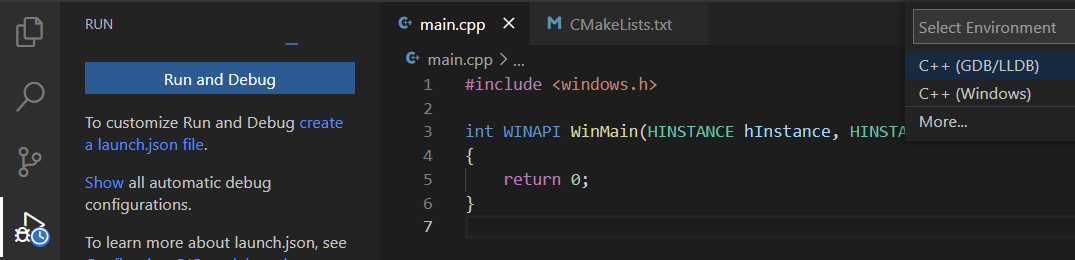
Choose C++ (GDB/LLDB) and select the Default configuration.
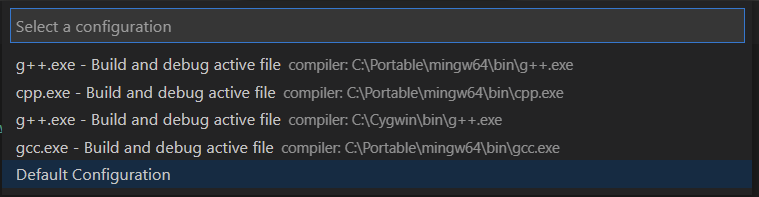
This'll create a launch.json file. Replace the content by the following code5:
{
    "version": "0.2.0",
    "configurations": [
        {
            "name": "(gdb) Launch",
            "type": "cppdbg",
            "request": "launch",
            // Resolved by CMake Tools:
            "program": "${command:cmake.launchTargetPath}",
            "args": [],
            "stopAtEntry": false,
            "cwd": "${workspaceFolder}",
            "environment": [
                {
                    // add the directory where our target was built to the PATHs
                    // it gets resolved by CMake Tools:
                    "name": "PATH",
                    "value": "${env:PATH}:${command:cmake.getLaunchTargetDirectory}"
                }
            ],
            "externalConsole": false,
            "MIMode": "gdb",
            "setupCommands": [
                {
                    "description": "Enable pretty-printing for gdb",
                    "text": "-enable-pretty-printing",
                    "ignoreFailures": true
                }
            ]
        }
    ]
}
We're almost there. Open the command palette (Windows: Ctrl+Shift+P) and enter CMake: Configure. You should be able to select the Compiler we just installed at C:\Dev.
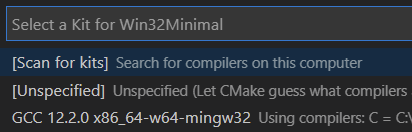 .
.
You should see a lot of output in the correspondant window.
This is it: Open main.cpp and press F5 to Start Debugging.
The setup of the development environment has been successful.
- Which Mingw-w64 build to I have to use?
- How do I add directories to the
%PATH%variable? - Why do I have to use
WinMaininstead ofwWinMain