
For WLS 1.0 & Ubuntu 18Dev Environment Setup
These steps have been copied from 2.0's README to reduce confusion.
- With the VPN turned off, Install Ubuntu 18 LTS from the Windows Store (you made need to put in a helpdesk ticket for this step)
- Open Ubuntu from Windows & enter a username and an easy to remember password
- Click the little orange Ubuntu icon in the top left corner of the window -> edit, and note the Ubuntu specific clipboard commands
- Run
sudo apt-get update && sudo apt install gnupg2 && sudo apt-get install libpq-dev imagemagick - Close Ubuntu by running
exitand re-open
You may use the Ruby manager of your choice. These installation instructions are for Ruby Version Manager (RVM).
- Load keys for validating the installer integrity
gpg2 --recv-keys 409B6B1796C275462A1703113804BB82D39DC0E3 7D2BAF1CF37B13E2069D6956105BD0E739499BDB- Be sure to check for and accept any Windows security prompts caused by the above command.
- Disregard the error from the above command: gpg: keyserver recieve failed: General Error
- Download and run the installation script
\curl -sSL https://get.rvm.io | bash -s - Close Ubuntu and re-open
- Install Ruby
rvm install 2.6.6
You may use the Node manager of your choice. These installation instructions are for Node Version Manager (NVM).
- Install NVM
curl -o- https://raw.githubusercontent.com/nvm-sh/nvm/v0.35.3/install.sh | bash - Exit and reopen Ubuntu
- Install Node
nvm install 14.17.0
Even though you will not need Bitbucket Access for this Rock, this step will walk you through setting up your SSH keys.
Add a ssh key to Bitbucket using the following steps. Additional details are available from Bitbucket
- Create your SSH key
ssh-keygen- Press enter when prompted with "Enter file in which to save the..."
- Press enter twice when prompted with "Enter passphrase"
- Set permissions on your keys
sudo chmod 600 ~/.ssh/id_rsa && sudo chmod 600 ~/.ssh/id_rsa.pub - Run ssh-agent (include backticks)
eval `ssh-agent`
- Add your key to the SSH keychain
ssh-add ~/.ssh/id_rsa - View your public key
cat ~/.ssh/id_rsa.pub - Copy your public key from above, and add it to your Bitbucket Account's SSH Keys section
- Verify that the key is setup properly
ssh -T git@bitbucket.org - Say "yes" when asked if you'd like to add to known hosts
- You should see your username and some message about how shell access is disabled
- Exit and reopen Ubuntu
- Run
ssh -T git@bitbucket.orgagain just to ensure you can still connect to Bitbucket after a restart
Since we're running the project in WSL, we need to configure VS Code for "remote" development.
- Install VS Code
- Install the Remote - WSL extension
- Open the project via the Ubuntu console
- Open the WSL terminal (e.g. Ubuntu 18.04)
- Naviagate to your repo folder and open VS Code
code .
- OR open the project from within VS Code
- Start VS Code
- Press
F1 - Enter
Remote-WSL:New Windowand hit enter - Use the File menu to open your project folder
By default Git does not know your name or email. Introduce yourself.
git config --global user.email "you@example.com"git config --global user.name "Your Name"
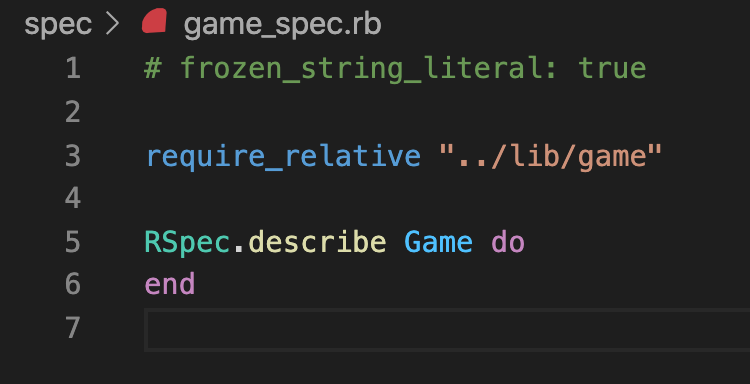
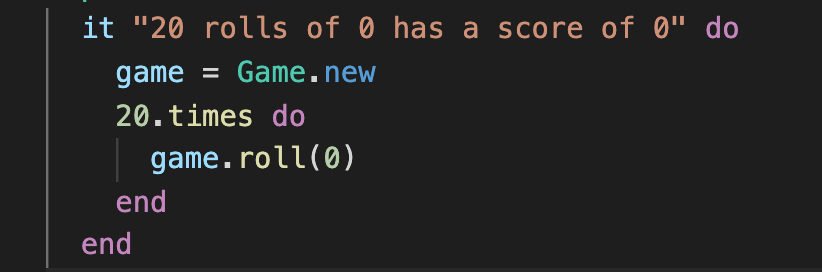
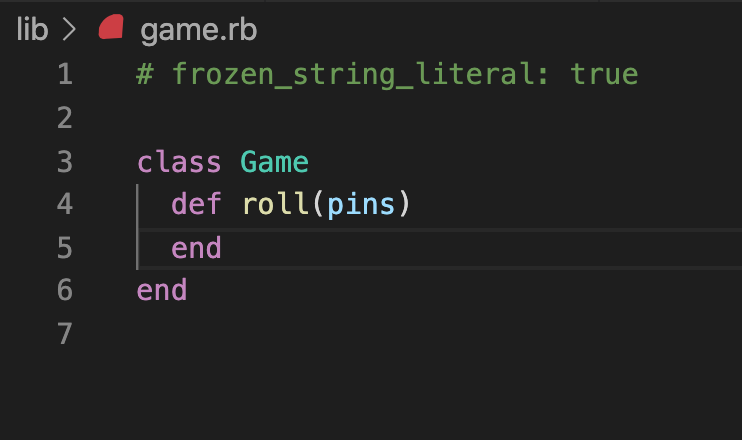

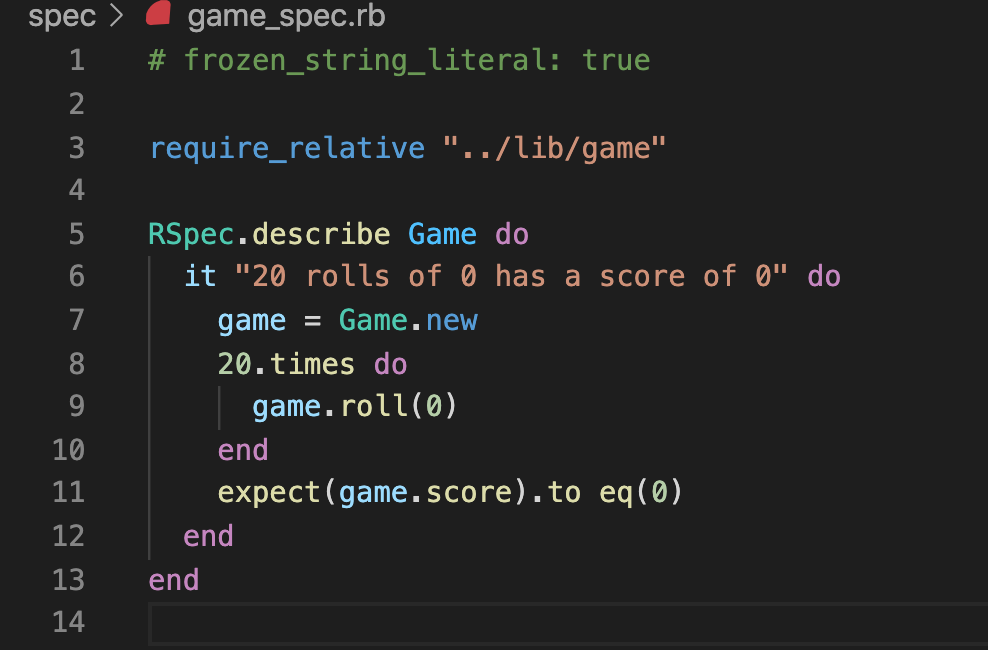





It is unlikely that I'll spot comments in this gist, so please send me a DM on Teams if you have a question.