Let's say we are building a UI library with React and TypeScript. Our goal is to test and publish it on the npm registry.
Links:
- code: my-react-lib
- npm: @jeromeabel/my-react-lib
The idea is to create two folders: one for development (package) and the other for testing the import (client). I find it convenient to keep a minimal single-page web app (main.tsx, App.tsx) inside the package folder to test the components.
my-react-lib
├── 📂 package
│   ├── 📂 src
│   │   ├── 📂 lib
│   │   │   ├── 📂 Button
│   │   │   │   └── Button.tsx
│   │   │   └── index.ts
│   │   ├── App.tsx
│   │   ├── index.css
│   │   └── main.tsx
│   ├── package.json
│   ├── viteconfig.ts
│   └── store.js
└── 📂 client
│   └── ...
A more robust approach could be to draw inspiration from the structures proposed by the “monorepos” or “storybook”.
- Check the name of your package in npmjs.com. The best idea is to use your npm username as the prefix to avoid naming conflicts. Mine would be:
@jeromeabel/my-react-lib - Create a folder for your package 'my-react-lib', and a git repository.
- Create a package and a client projects with Vite, React and Typescript:
pnpm create vite package --template react-ts
pnpm create vite client --template react-ts
cd package && pnpm install
cd ../client && pnpm install- For both projects, clean up some files to get minimal web apps:
- Delete src/assets, /public, App.css
- Clear index.css
- Set a title in index.html, delete link to icon
- Optional: add basic prettier rules to have consistent code. Create a
.prettierrcfile with this content:
{
  "semi": true,
  "singleQuote": true,
  "tabWidth": 2
}Both projects are setup. We have to work in the package folder. We will focus on two main files: viteconfig.ts and package.json.
If you run npm run build, you get files for a web application:
dist/index.html                   0.39 kB │ gzip:  0.27 kB
dist/assets/index-cb5a6f38.css    0.02 kB │ gzip:  0.04 kB
dist/assets/index-4a186a1e.js   142.80 kB │ gzip: 45.84 kB
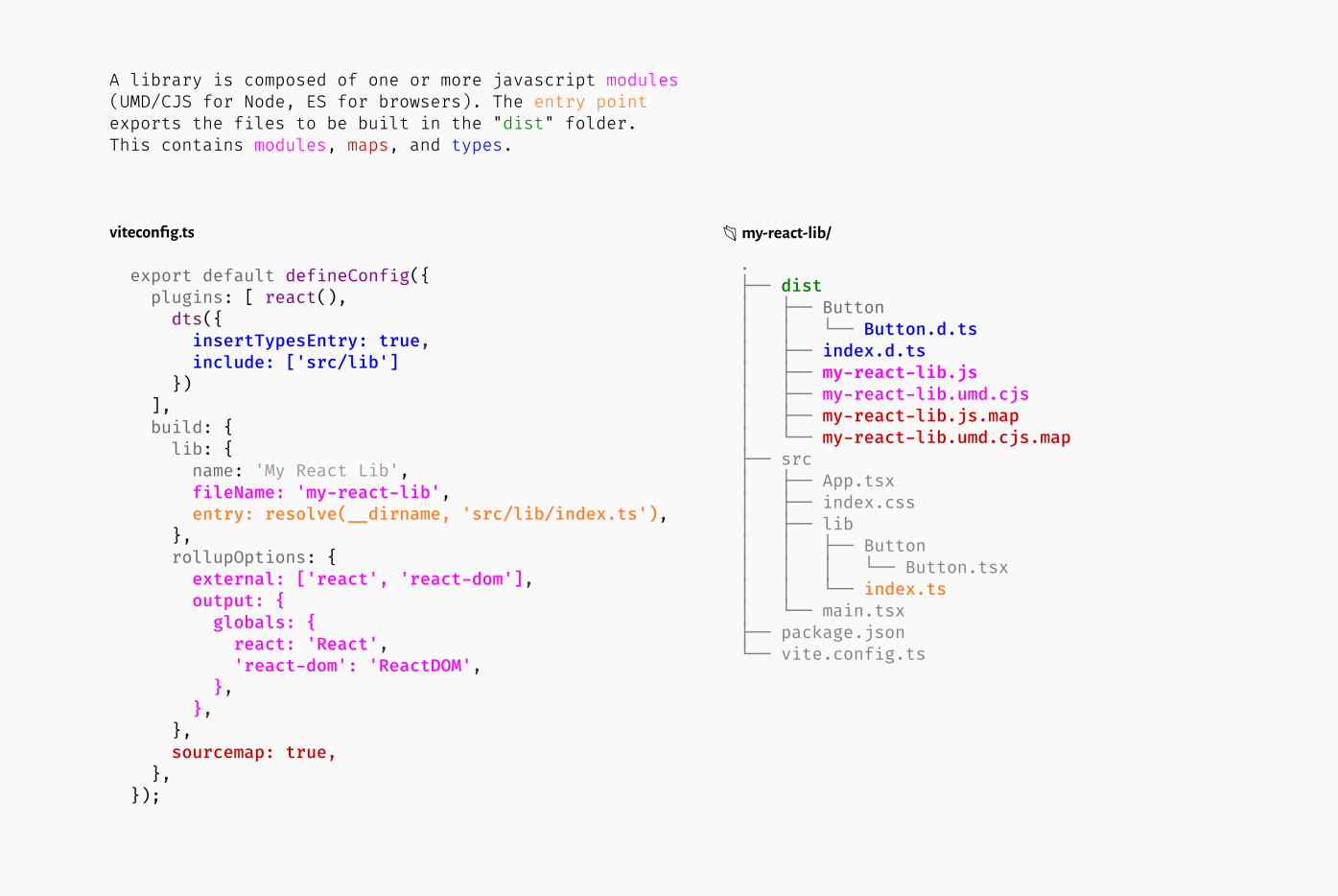
Instead, we want turn the code into a library. We could follow some rules from the vitejs - library mode documentation.
First, we need to install two packages: pnpm i -D vite-plugin-dts @types/node:
@types/nodewill help us to resolve some type checking with the node 'path' modulevite-plugin-dts(link) will generate the declaration type files (.d.ts) of our library and avoids to change the 'tsconfig.json' file.
All happens inside the viteconfig.ts file:
import { defineConfig } from 'vite';
import react from '@vitejs/plugin-react';
import { resolve } from 'path';
import dts from 'vite-plugin-dts';

export default defineConfig({
  plugins: [ react(), dts({ insertTypesEntry: true, include: ['src/lib'] })],
  build: {
    lib: {
      entry: resolve(__dirname, 'src/lib/index.ts'),
      name: 'My React Lib',
      fileName: 'my-react-lib',
    },
    rollupOptions: {
      external: ['react', 'react-dom'],
      output: {
        globals: {
          react: 'React',
          'react-dom': 'ReactDOM',
        },
      },
    },
    sourcemap: true,
  },
});
Some explanations:
- In "plugins", we add
dts()with two options:insertTypesEntry: trueto create a declaration "index.d.ts" fileinclude: ['src/lib']to point directly to the development directory
- Add the "build" property with:
- "lib" to build only the module's files instead of the web app:
entry: the entry point of our lib is the "index.ts" filename: it will be displayed in the npm registryfileName: written in snake case format. It's common to fill the filename with "index", but for avoid confusion with other "index files, I prefer keep it with my own words.
- Add "rollupOptions"
external: to avoid adding dependencies into your library, e.g.vueorreact. In this little project, without this option, the es module file is 77kB, and with it, it becomes 21kB.output { globals: ... }: provide global variables to use in the UMD build for externalized deps
sourcemap: true: will generate ".map" files for each modules. Source maps provide a mapping between the original source code and the compiled code. This allows you to debug your application using the original source code directly in the browser's developer tools.
- "lib" to build only the module's files instead of the web app:
You could find more documentations here:
Warning
When developing and testing the library, I had some troubles with the output files in the "dist" folder.
To be more verbose and avoid automatic nehaviors, you might find helpful to setup the output format yourself, with this options, in the "lib" section:
formats: ['cjs', 'es', 'umd'],
fileName: (format) => `index.${format}.js`
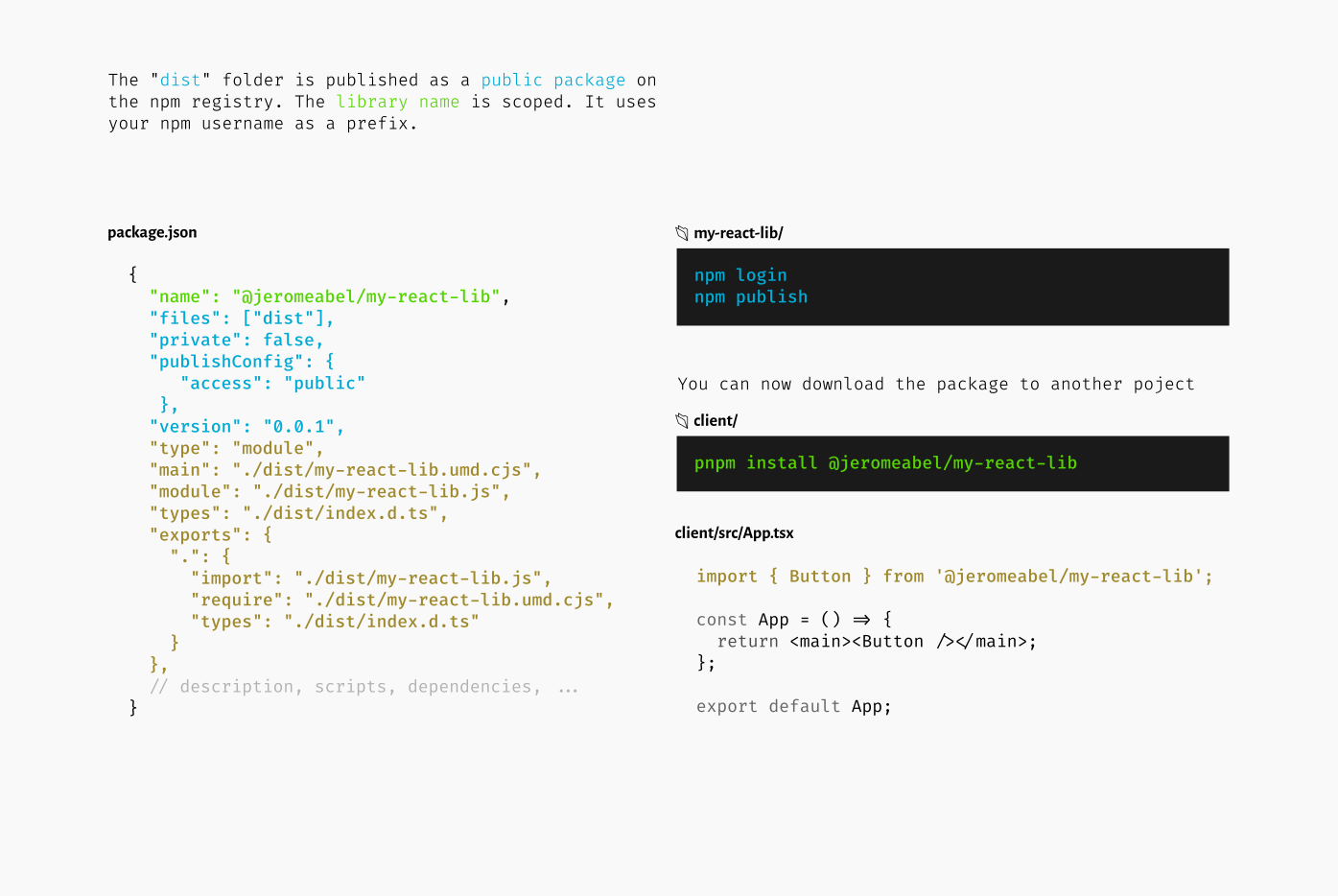
{
  "name": "@jeromeabel/my-react-lib",
  "description": "UI lib built with React and Typescript",
  "author": "Jérôme Abel",
  "license": "MIT",
   "keywords": [
    "react",
    "typescript",
    "table"
  ],
  "repository": {
    "type": "git",
    "url": "https://github.com/jeromeabel/my-react-lib.git"
  },
  "private": false,
  "publishConfig": {
		"access": "public"
	},
  "version": "0.0.1",
  "type": "module",
  "files": ["dist"],
  "main": "./dist/my-react-lib.umd.cjs",
  "module": "./dist/my-react-lib.js",
  "types": "./dist/index.d.ts",
  "exports": {
    ".": {
      "import": "./dist/my-react-lib.js",
      "require": "./dist/my-react-lib.umd.cjs",
      "types": "./dist/index.d.ts"
    }
  },
  // scripts, dependencies, ...
}
Some explanations:
- .
"name": "@jeromeabel/my-react-lib": the name of the module. The "@" symbol is used to indicate a scope. "private": true. If you want to publish the library, you can delete this line or set it tofalse."publishConfig": { "access": "public" }. Enable publishing public libraries."version": "0.0.1". The version follows semantic versioning, which consists of three parts: major, minor, and patch."type": "module". The package should be treated as an ECMAScript module (ESM). This allows you to use modern JavaScript features such asimportandexportstatements."files": ["dist"]: Only the "dist" directory should be included when publishing the package."main": "./dist/my-react-lib.umd.cjs". The entry point of the package when used in a CommonJS environment (e.g., Node.js). It points to the UMD (Universal Module Definition) file in the "dist" directory."module": "./dist/my-react-lib.js". The entry point of the package when used in an ECMAScript module (ESM) environment. It points to the JavaScript file in the "dist" directory."types": "./dist/index.d.ts". The path to the TypeScript declaration file (.d.ts) for the package. It helps provide type information for TypeScript users."exports": { ... }: This section specifies the exports configuration for the package. It defines how the package can be imported using various module systems. In this example, it sets the import path for the JavaScript file, the require path for the UMD file, and the types path for the TypeScript declaration file.
[!Infos]
- Filenames must match between package.json and viteconfig.ts
- If we not add "types" inside "exports" section, the client project could not access to the declaration file
Add a README.md file in the root of the package project. It will be added automatically in your package on npmjs.
Add a src/lib/Button/Button.tsx component :
const Button = ({ label = 'hello' }: { label?: string }) => {
	return <button>My button: {label}</button>;
};
export default Button;
Add our entry point for all the library, src/lib/index.ts:
export { default as Button } from './Button/Button';Rewrite App.tsx to test the component
import { Button } from './lib';

const App = () => {
  return (
    <main>
      <h1>Package @jeromeabel/my-react-lib</h1>
      <Button label="in my package" />
    </main>
  );
};

export default App;
Test it on the browser
pnpm run devYou will the built files in the "dist" folder
pnpm run buildWith this command, your package is locally accessible. It produces an alias link to your dist folder.
yarn link
or sudo npm link
or npm link
The yarn command works better for me.
Output:
~/my-react-lib/package ➔ yarn link
yarn link v1.22.19
success Registered "@jeromeabel/my-react-lib".
info You can now run `yarn link "@jeromeabel/my-react-lib"` in the projects where you want to use this package and it will be used instead.
Done in 0.04s.It's time to test the package from another project. Go to the client folder.
First, get the link of the package with the full name:
~/my-react-lib/client ➔ yarn link @jeromeabel/my-react-lib
yarn link v1.22.19
success Using linked package for "@jeromeabel/my-react-lib".
Done in 0.04s.
[!Infos] Every build in the "package" project update the "client" link. To unlink:
- In the client:
yarn unlink @jeromeabel/my-react-lib- In the package:
yarn unlink
If you feel ok with your component.
- Create an account on npmjs.org
- Change the version number using semantic versioning. You need the change the number every publishing
npm run build
npm login
npm publish