
-
-
Save jermdavis/8d8a79f680505f1074153f02f70b9105 to your computer and use it in GitHub Desktop.
| Param( | |
| $solrVersion = "6.6.2", | |
| $installFolder = "c:\solr", | |
| $solrPort = "8983", | |
| $solrHost = "solr", | |
| $solrSSL = $true, | |
| $nssmVersion = "2.24", | |
| $JREVersion = "1.8.0_151" | |
| ) | |
| $JREPath = "C:\Program Files\Java\jre$JREVersion" ## Note that if you're running 32bit java, you will need to change this path | |
| $solrName = "solr-$solrVersion" | |
| $solrRoot = "$installFolder\$solrName" | |
| $nssmRoot = "$installFolder\nssm-$nssmVersion" | |
| $solrPackage = "https://archive.apache.org/dist/lucene/solr/$solrVersion/$solrName.zip" | |
| $nssmPackage = "https://nssm.cc/release/nssm-$nssmVersion.zip" | |
| $downloadFolder = "~\Downloads" | |
| ## Verify elevated | |
| ## https://superuser.com/questions/749243/detect-if-powershell-is-running-as-administrator | |
| $elevated = [bool](([System.Security.Principal.WindowsIdentity]::GetCurrent()).groups -match "S-1-5-32-544") | |
| if($elevated -eq $false) | |
| { | |
| throw "In order to install services, please run this script elevated." | |
| } | |
| function downloadAndUnzipIfRequired | |
| { | |
| Param( | |
| [string]$toolName, | |
| [string]$toolFolder, | |
| [string]$toolZip, | |
| [string]$toolSourceFile, | |
| [string]$installRoot | |
| ) | |
| if(!(Test-Path -Path $toolFolder)) | |
| { | |
| if(!(Test-Path -Path $toolZip)) | |
| { | |
| Write-Host "Downloading $toolName..." | |
| Start-BitsTransfer -Source $toolSourceFile -Destination $toolZip | |
| } | |
| Write-Host "Extracting $toolName to $toolFolder..." | |
| Expand-Archive $toolZip -DestinationPath $installRoot | |
| } | |
| } | |
| # download & extract the solr archive to the right folder | |
| $solrZip = "$downloadFolder\$solrName.zip" | |
| downloadAndUnzipIfRequired "Solr" $solrRoot $solrZip $solrPackage $installFolder | |
| # download & extract the nssm archive to the right folder | |
| $nssmZip = "$downloadFolder\nssm-$nssmVersion.zip" | |
| downloadAndUnzipIfRequired "NSSM" $nssmRoot $nssmZip $nssmPackage $installFolder | |
| # Ensure Java environment variable | |
| $jreVal = [Environment]::GetEnvironmentVariable("JAVA_HOME", [EnvironmentVariableTarget]::Machine) | |
| if($jreVal -ne $JREPath) | |
| { | |
| Write-Host "Setting JAVA_HOME environment variable" | |
| [Environment]::SetEnvironmentVariable("JAVA_HOME", $JREPath, [EnvironmentVariableTarget]::Machine) | |
| } | |
| # if we're using HTTP | |
| if($solrSSL -eq $false) | |
| { | |
| # Update solr cfg to use right host name | |
| if(!(Test-Path -Path "$solrRoot\bin\solr.in.cmd.old")) | |
| { | |
| Write-Host "Rewriting solr config" | |
| $cfg = Get-Content "$solrRoot\bin\solr.in.cmd" | |
| Rename-Item "$solrRoot\bin\solr.in.cmd" "$solrRoot\bin\solr.in.cmd.old" | |
| $newCfg = $newCfg | % { $_ -replace "REM set SOLR_HOST=192.168.1.1", "set SOLR_HOST=$solrHost" } | |
| $newCfg | Set-Content "$solrRoot\bin\solr.in.cmd" | |
| } | |
| } | |
| # Ensure the solr host name is in your hosts file | |
| if($solrHost -ne "localhost") | |
| { | |
| $hostFileName = "c:\\windows\system32\drivers\etc\hosts" | |
| $hostFile = [System.Io.File]::ReadAllText($hostFileName) | |
| if(!($hostFile -like "*$solrHost*")) | |
| { | |
| Write-Host "Updating host file" | |
| "`r`n127.0.0.1`t$solrHost" | Add-Content $hostFileName | |
| } | |
| } | |
| # if we're using HTTPS | |
| if($solrSSL -eq $true) | |
| { | |
| # Generate SSL cert | |
| $existingCert = Get-ChildItem Cert:\LocalMachine\Root | where FriendlyName -eq "$solrName" | |
| if(!($existingCert)) | |
| { | |
| Write-Host "Creating & trusting an new SSL Cert for $solrHost" | |
| # Generate a cert | |
| # https://docs.microsoft.com/en-us/powershell/module/pkiclient/new-selfsignedcertificate?view=win10-ps | |
| $cert = New-SelfSignedCertificate -FriendlyName "$solrName" -DnsName "$solrHost" -CertStoreLocation "cert:\LocalMachine" -NotAfter (Get-Date).AddYears(10) | |
| # Trust the cert | |
| # https://stackoverflow.com/questions/8815145/how-to-trust-a-certificate-in-windows-powershell | |
| $store = New-Object System.Security.Cryptography.X509Certificates.X509Store "Root","LocalMachine" | |
| $store.Open("ReadWrite") | |
| $store.Add($cert) | |
| $store.Close() | |
| # remove the untrusted copy of the cert | |
| $cert | Remove-Item | |
| } | |
| $certStore = "$solrRoot\server\etc\solr-ssl.keystore.pfx" | |
| # export the cert to pfx using solr's default password | |
| if(!(Test-Path -Path "$solrRoot\server\etc\solr-ssl.keystore.pfx")) | |
| { | |
| Write-Host "Exporting cert for Solr to use" | |
| $cert = Get-ChildItem Cert:\LocalMachine\Root | where FriendlyName -eq "$solrName" | |
| $certPwd = ConvertTo-SecureString -String "secret" -Force -AsPlainText | |
| $cert | Export-PfxCertificate -FilePath $certStore -Password $certpwd | Out-Null | |
| } | |
| # Update solr cfg to use keystore & right host name | |
| if(!(Test-Path -Path "$solrRoot\bin\solr.in.cmd.old")) | |
| { | |
| Write-Host "Rewriting solr config" | |
| $cfg = Get-Content "$solrRoot\bin\solr.in.cmd" | |
| Rename-Item "$solrRoot\bin\solr.in.cmd" "$solrRoot\bin\solr.in.cmd.old" | |
| $newCfg = $cfg | % { $_ -replace "REM set SOLR_SSL_KEY_STORE=etc/solr-ssl.keystore\.(p12|jks)", "set SOLR_SSL_KEY_STORE=$certStore" } | |
| $newCfg = $newCfg | % { $_ -replace "REM set SOLR_SSL_KEY_STORE_PASSWORD=secret", "set SOLR_SSL_KEY_STORE_PASSWORD=secret" } | |
| $newCfg = $newCfg | % { $_ -replace "REM set SOLR_SSL_TRUST_STORE=etc/solr-ssl.keystore\.(p12|jks)", "set SOLR_SSL_TRUST_STORE=$certStore" } | |
| $newCfg = $newCfg | % { $_ -replace "REM set SOLR_SSL_TRUST_STORE_PASSWORD=secret", "set SOLR_SSL_TRUST_STORE_PASSWORD=secret" } | |
| $newCfg = $newCfg | % { $_ -replace "REM set SOLR_HOST=192.168.1.1", "set SOLR_HOST=$solrHost" } | |
| $newCfg | Set-Content "$solrRoot\bin\solr.in.cmd" | |
| } | |
| } | |
| # install the service & runs | |
| $svc = Get-Service "$solrName" -ErrorAction SilentlyContinue | |
| if(!($svc)) | |
| { | |
| Write-Host "Installing Solr service" | |
| &"$installFolder\nssm-$nssmVersion\win64\nssm.exe" install "$solrName" "$solrRoot\bin\solr.cmd" "-f" "-p $solrPort" | |
| $svc = Get-Service "$solrName" -ErrorAction SilentlyContinue | |
| } | |
| if($svc.Status -ne "Running") | |
| { | |
| Write-Host "Starting Solr service" | |
| Start-Service "$solrName" | |
| } | |
| # finally prove it's all working | |
| $protocol = "http" | |
| if($solrSSL -eq $true) | |
| { | |
| $protocol = "https" | |
| } | |
| Invoke-Expression "start $($protocol)://$($solrHost):$solrPort/solr/#/" |

This script won't work for Windows Server 2012 R2. Instead of using -FriendlyName to find an existing cert, switch these (there's a couple instances) to Subject -eq "CN=$solrHost" and then remove the -FriendlyName from New-SelfSignedCertificate.

Am I correct in saying your script will install NSSM below c:\solr?
If so, is there a particular reason for that or could it be installed elsewhere?

@TakeitEasyAlan I ran into the same issue. I manually changed how NSSM launches SOLR by modifying this line:
&"$installFolder\nssm-$nssmVersion\win64\nssm.exe" install "$solrName" "$solrRoot\bin\solr.cmd start" "-f" "-p $solrPort"
I basically added "start" after "solr.cmd". Then everything worked.
Further edit. I had to make the above change as I was originally running the 32 bit Java RTE. I then decided to revert my checkpoint and install the 64 bit RTE instead - and there, the script failed when I had "start" as part of the start command. Not exactly sure what the root cause is for this change in behaviour - but it might explain a few things.

Hi,
Any idea how to fix this pause thing?

Make sure you're installing Java SE Development Kit 8 (and not 10) and remember to change out the $JREVersion accordingly (as of today it should end in 171 not 151).

I faced similar issue as @cassidydotdk
My path to success
-
Used Chocolatey to install jre8 8.0.181. This installed both 32 and 64 bit versions.
-
updated $JREVersion = "1.8.0_181"
-
Had to uncheck the x86 architecture in JRE settings for user. You can reach to the settings by opening 'Java' from control panel.
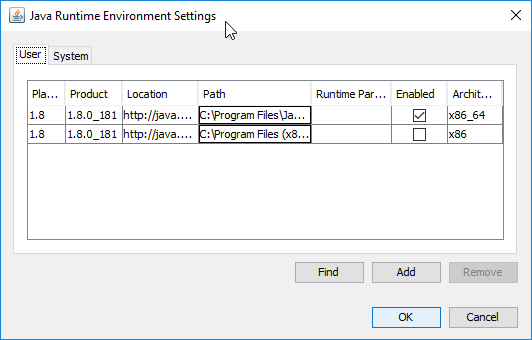
-
Ran the script and this time Solr started successfully

In the script I changed $JREPath = "C:\Program Files\Java\jre$JREVersion" to $JREPath = "C:\Program Files\Java\jdk$JREVersion\jre" and everything ran fine. Using 1.8.0_191.

Can someone explain to me why this isn't incorporated into Sitecore Installation Framework, this worked a charm for me incredible thank you. Update: just noticed your SIF extension nice work.

For all the people suffering with the paused SOLR service, you need to add restart to the command in NSSM GUI. I found that out after running the command from CMD.
So just add restart -f
The port is optional since it's a default.

Would be good to check if the path you are setting for JAVA_HOME exists for people who forget to check the JRE version.
# Ensure Java environment variable
$jreVal = [Environment]::GetEnvironmentVariable("JAVA_HOME", [EnvironmentVariableTarget]::Machine)
if($jreVal -ne $JREPath)
{
    if(![System.IO.File]::Exists($JREPath))
    {
        throw "ERROR setting JAVA_HOME - Check Version. Path doesn't exist: $JREPath"
    }
    Write-Host "Setting JAVA_HOME environment variable"
    [Environment]::SetEnvironmentVariable("JAVA_HOME", $JREPath, [EnvironmentVariableTarget]::Machine)
}
@psx790 if you're looking at the Services interface it seems like nssm is actually called and it manages the task to run. You can run
.\nssm.exe edit solor-6.6.2to see what it's actually doing. See https://stackoverflow.com/a/48661426/11912