Unlock the full power of your development environment on the go. This guide shows you how to seamlessly code on your iPad using GitHub Codespaces and Blink Shell.
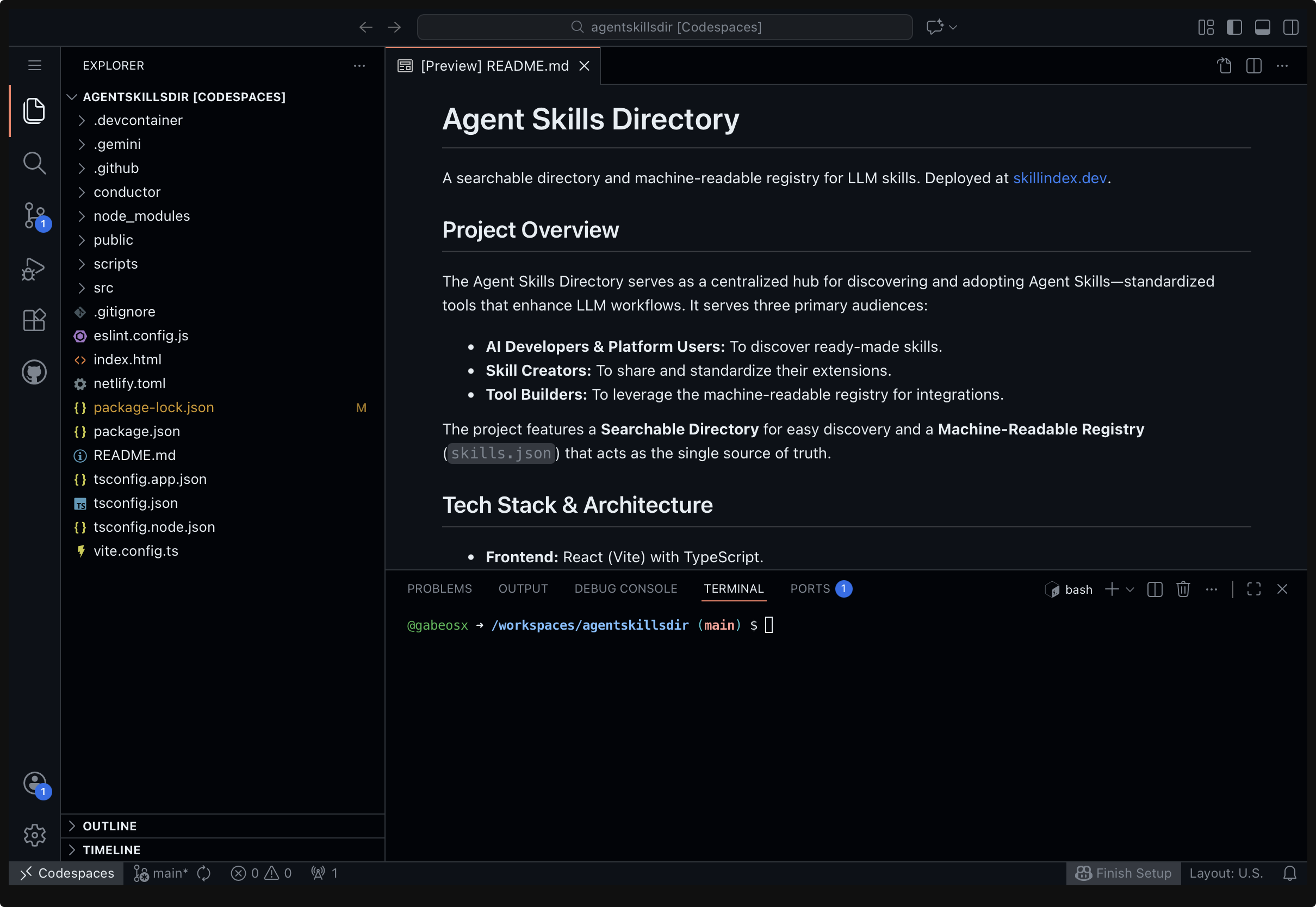
First, ensure your repository has a .devcontainer/devcontainer.json file. This file describes your development environment (ports, extensions, commands).
Tip: You can use an LLM to generate this for you, or install the devcontainer-helper skill.
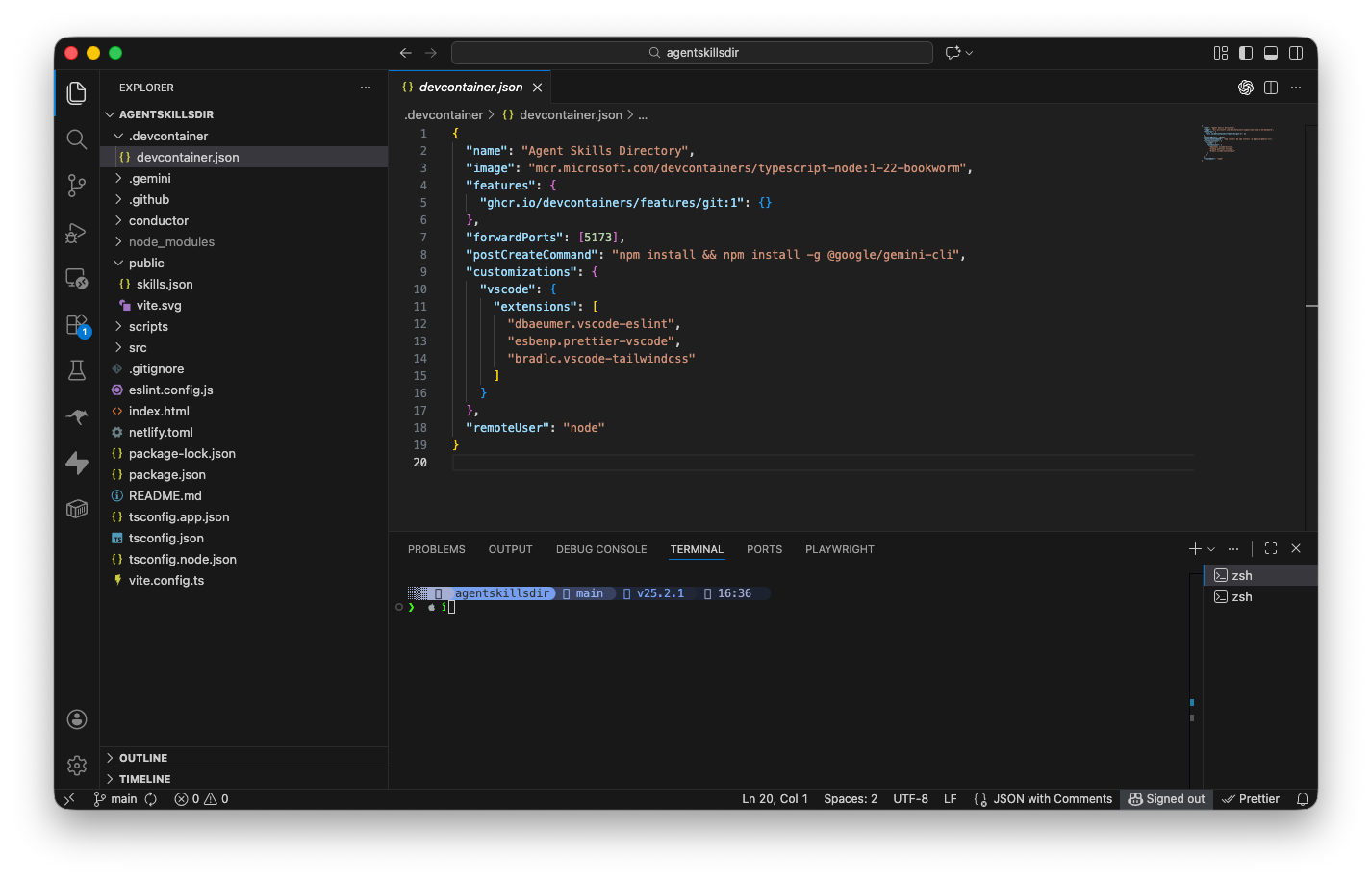
Navigate to the GitHub Codespaces console and click New codespace in the upper right corner.
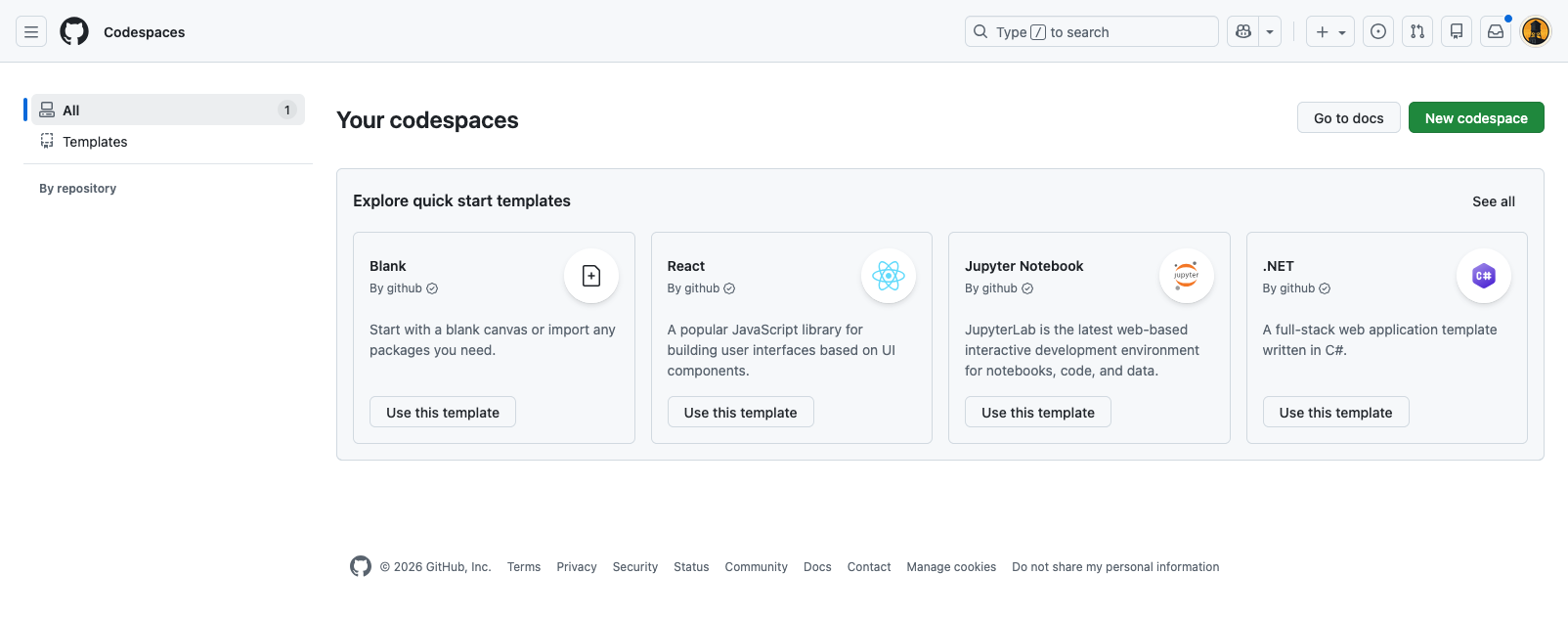
Select the repository, branch, region, and machine type for your Codespace. Make sure to select the devcontainer configuration you created in Step 1.
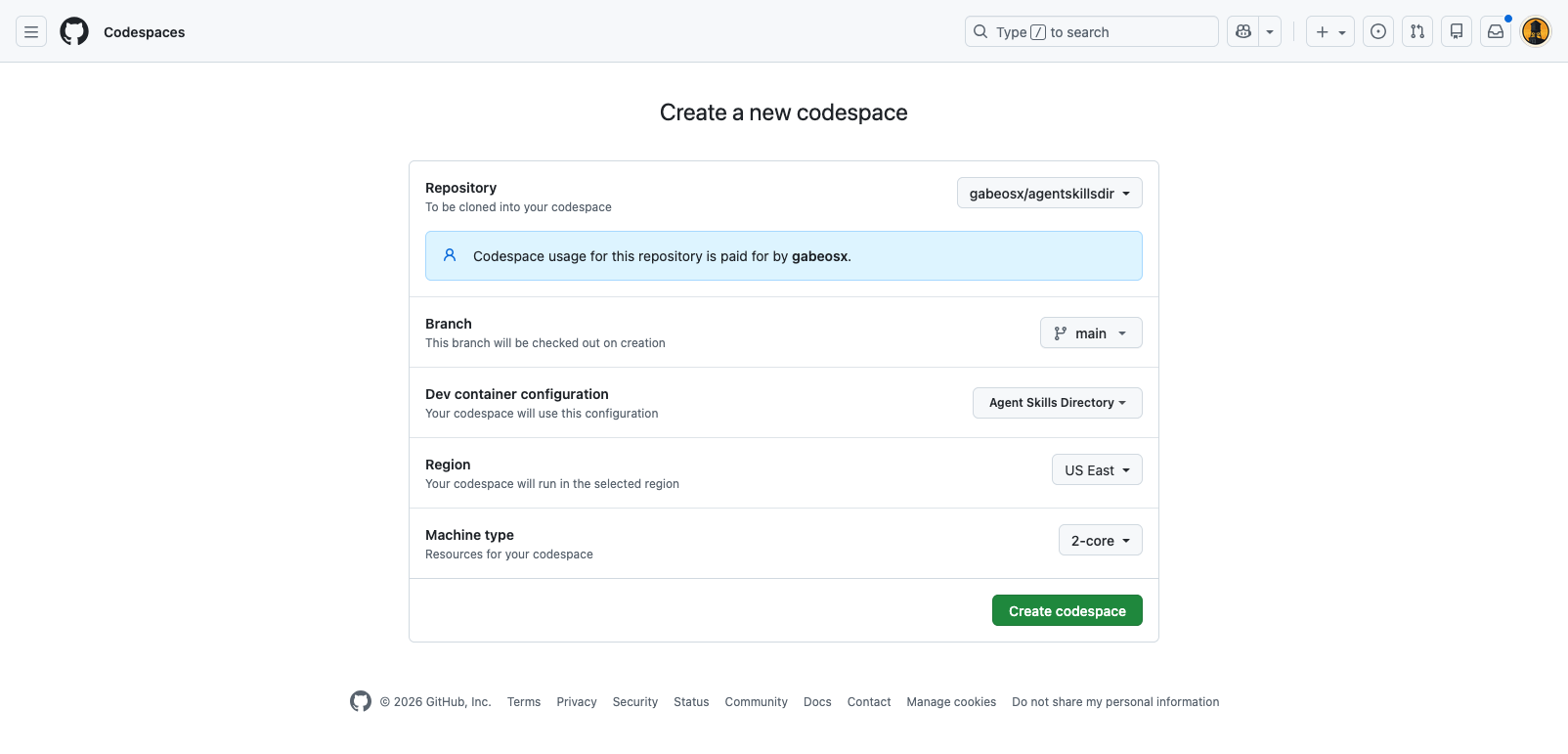
Once created, you'll be dropped into a browser-based VS Code instance. Verify that your environment is running correctly. If you have web apps running, check the Ports tab for the access URL.
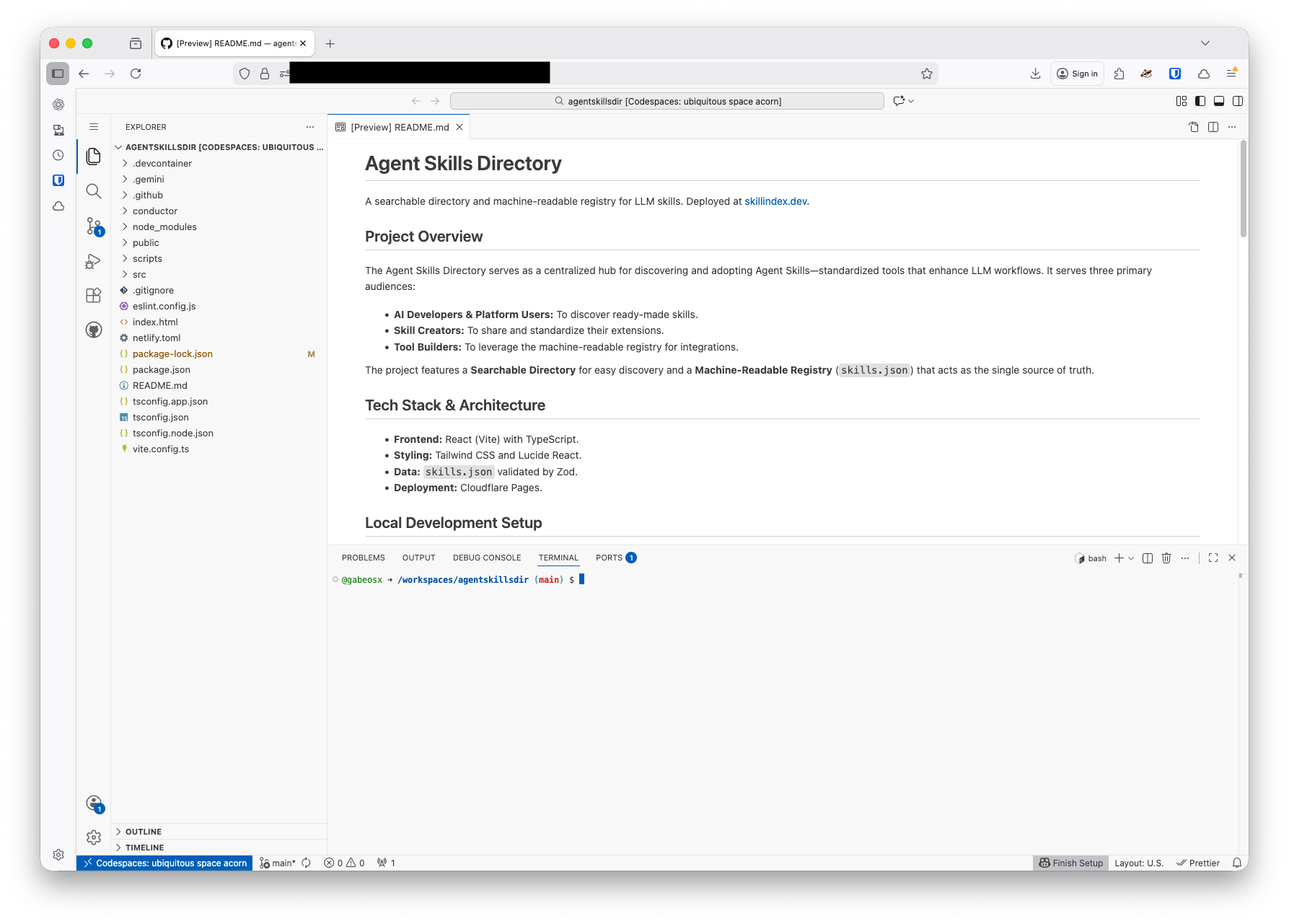
- Install Blink Shell on your iPad.
- On your iPad, go to the GitHub Codespaces console.
- Find your active Codespace, tap the "..." menu, and select Open in Visual Studio Code.
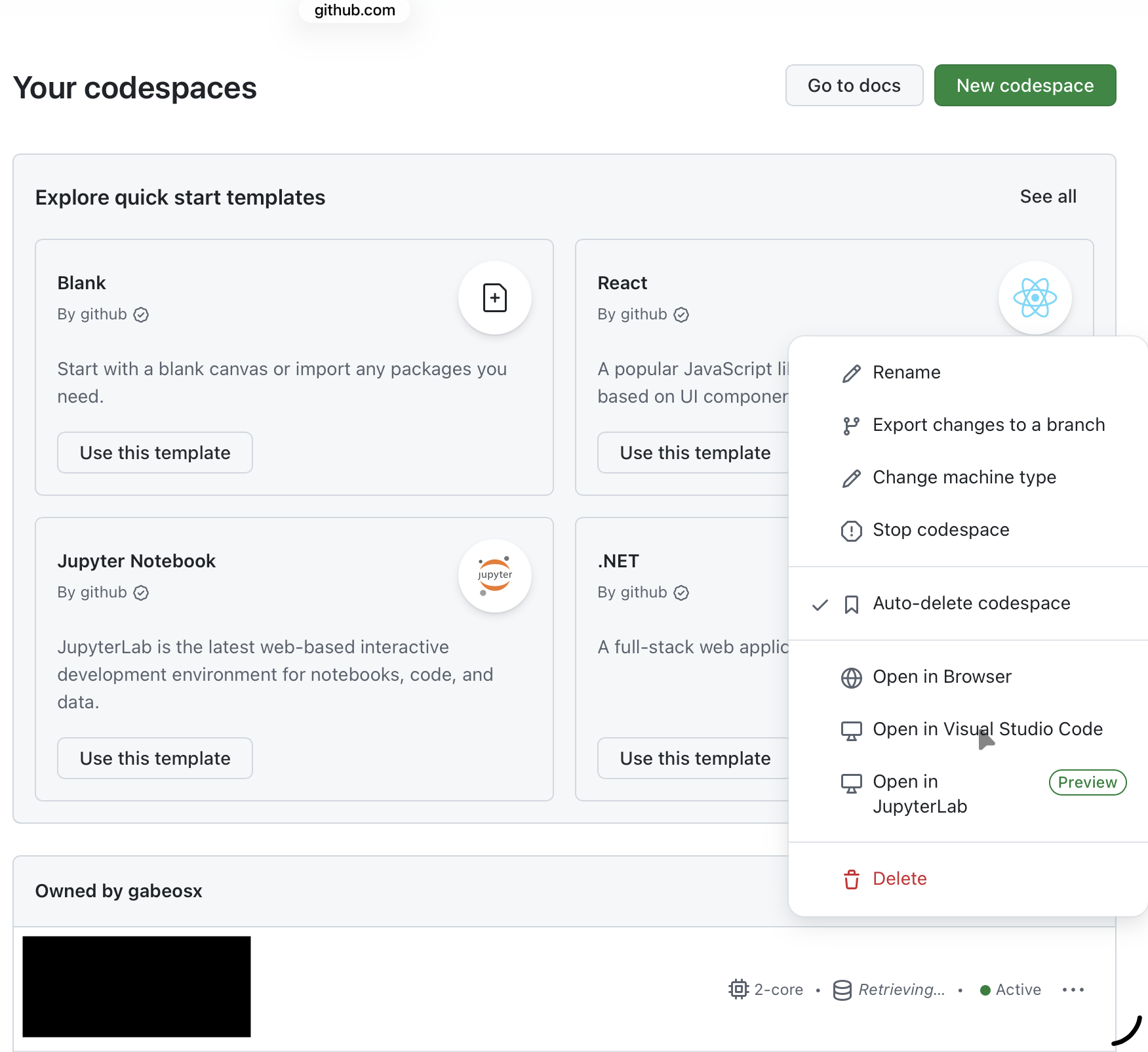
Blink Shell will intercept the request and launch a native VS Code experience connected to your cloud environment. You now have a full-fledged dev environment on your iPad!