Skip to content

Instantly share code, notes, and snippets.

Show Gist options
  • Select an option

  • Save HimDek/e09340eae2861e1ad8b7f6bdba5ee9ff to your computer and use it in GitHub Desktop.

Select an option

Save HimDek/e09340eae2861e1ad8b7f6bdba5ee9ff to your computer and use it in GitHub Desktop.
This Guide will show you how to install and run apk files or Android apps in any Edition of Windows 11 using Windows Subsystem for Android. WSA or Windows Subsystem for Android is a Tool that allows Windows to run Android Apps directly without using any emulator.

Install Android apps or apk files in Windows using Windows Subsystem for Android

WSA or Windows Subsystem for Android is a Tool that allows Windows to run Android Apps directly without using any emulator. The problem is Windows Subsystem for Android is currently only available through preview via the Beta Channel of the Windows Insider Program. But if you follow my guide, you don't have to be in Windows Insider Program to try it out. The only thing you need is Windows 11 installed and some patience.

Prerequisites:

  • Windows Subsystem for Android or WSA must be Installed.

Click here to view the guide that shows how to install Windows Subsystem for Android in any Edition of Windows 11 (including Windows 11 Home) non Inider or stable release.

How to Install Android Apps or apk files in Windows Subsystem for Android:

  • First install Windows Subsystem for Android. Click here to know how to do that.
  • Search and run Windows Subsystem for Android Setting from Windows start menu.
  • The window shown in the screenshot below will appear. There, click on the icon in the extreme left side of the Files box. This will start Windows Subsystem for Android and open the File Manager App in Android. This can take some time so be patient.
  • Keep File Manager running otherwise Windows Subsystem for Android will terminate itself.
  • Enable Optional Diagnostic Data and Developer mode in Windows Subsystem for Android Setting Window and click the Refresh button in the IP address Section.
  • Click here to download the latest version of adb and extract the downloaded zip file.
  • Inside the extracted folder, there should be a file named adb.exe along with a plenty of other files.
  • Put the apk files of the Android apps that you want to install in this folder, and rename them to names that are easier to remember.

    Note: You can download apk files of Android apps from websites like APKPure, APKMirror or F-Droid. These are trusted websites.

  • Copy the path of this folder from the pathbox in Windows File Explorer as shown in the screenshot below: 11
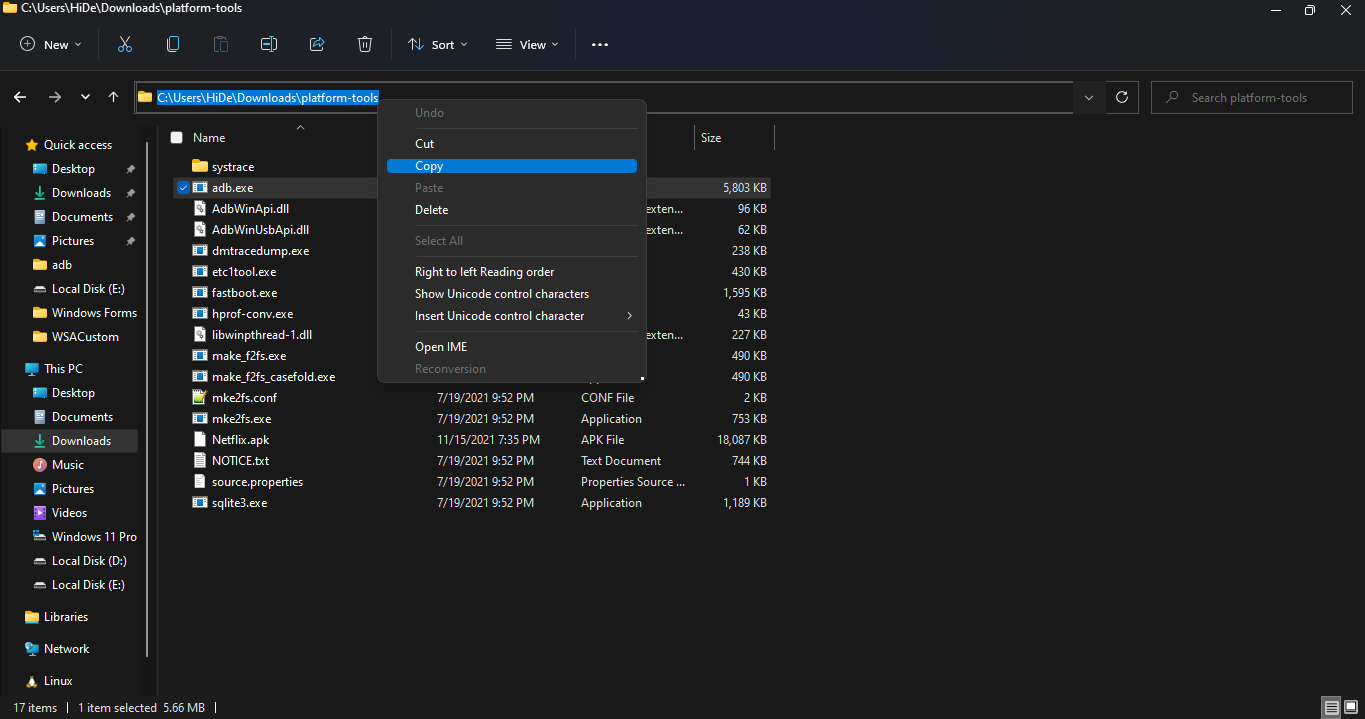
  • Search for Command Prompt in Windows Start Menu and Open it.
  • Type cd "" in the command prompt. Inside those "", paste the copied path by pressing Ctrl + V. The windows should look something like the below screenshot. Then press Enter. 12
  • Now, type adb connect 127.0.0.1:58526 in the Command Prompt Window. Press Enter and wait for the connection.
  • Once connected, type adb install "name.apk" in the Command Prompt. Replace name with the name of the apk file that you want to install and press Enter. After successful install, the installed App will appear in Windows Start Menu. Repeat this step for all the apk files that you want to install and they will appear in Windows Start Menu as well.

Thats it! Thanks for using this Guide. I hope it helped.

@m76493076-rgb
Copy link

Clever Portal is designed for efficient online learning. Teachers can assign tasks, track progress, and manage apps while students enjoy a simplified learning environment.

@haramali45
Copy link

As more users explore Windows Subsystem for Android to run mobile apps directly on their PCs, it also becomes easier to manage tools that rely on location-based features. For instance, certain Android apps let you view map details more conveniently when running on a larger screen, making navigation or area analysis clearer than on a smartphone. With WSA, these apps function just like they would on an Android device, giving you a more flexible and desktop-friendly experience.

@m65015482-coder
Copy link

This guide is surprisingly clear compared to most WSA tutorials out there. The step-by-step approach really helps, especially for people who aren’t comfortable with adb commands. I noticed the same thing when researching completely different topics like beauty blogs that accept guest posts the right instructions make even a technical process feel simple. Enabling Developer Mode and keeping the File Manager open were the two things I used to miss, so your explanation definitely fills the gaps.

@apkvzcom-a11y
Copy link

Roblox has evolved into a global gaming sensation, providing millions of users with endless opportunities to create, play, and explore virtual worlds. For those looking to take their gaming experience to the next level, the Roblox Mod Menu APK is the perfect solution. This powerful mod allows players to access exclusive features and customizations that are not available in the standard Roblox game. With the mod menu, users can unlock unlimited Robux, gain access to rare in-game items, and even activate cheats for faster progression and enhanced gameplay.

@dustin2123
Copy link

You can install Android apps or APK files on Windows 11 using Windows Subsystem for Android (WSA), which allows apps to run directly without an emulator. First, make sure WSA is installed and enabled, then turn on Developer Mode in the WSA settings. After that, download the latest ADB tools, place your APK files in the same folder, and use the command prompt to connect to WSA and install the apps. This process works for most Android apps, and you can even install apps like Wink Pro APK to access premium video editing features directly on your Windows PC.

@davidhammad
Copy link

Great guide on installing Android APKs on Windows via WSA! It’s a useful trick for running apps like GB WhatsApp v18.70 on your mobile. However, be cautious when using modded apps, as they may lack official updates or security features. Thanks for sharing this insightful method!

@davidhammad
Copy link

Great guide! I’m excited to try out PvZ Fusion Bahasa Indonesia Android on my PC using WSA. Your step-by-step instructions make it easy to set up and run Android apps on Windows. Thanks for sharing this!

@davidhammad
Copy link

Great walkthrough! Thanks for sharing how to use Windows Subsystem for Android (WSA) to install APK files directly in Windows 11. The step‑by‑step instructions make it much clearer. On a related note: I noticed many users looking for options like insta pro 2 apk download if you ever cover how to sideload modified apps or alternate versions safely, it would be a useful addition. Just a reminder though: always be mindful of security risks when downloading and installing APKs from unofficial sources.

@m65015482-coder
Copy link

This guide is really detailed and makes installing Android apps on Windows using WSA much easier, especially for those not in the Insider Program. One extra tip: sometimes certain APKs might have compatibility issues with WSA, so it’s helpful to try different APK sources if an app doesn’t install properly. For example, I successfully installed apps like car parking multiplayer 2 mod apk using trusted APK repositories, and it ran smoothly on Windows 11 without any extra emulators. Following these steps really streamlines running mobile apps directly on a PC!

@haramali45
Copy link

As more people experiment with Windows Subsystem for Android to run mobile apps directly on a PC, the ability to access tools without an emulator has become incredibly convenient. WSA makes multitasking easier—whether you're testing applications, playing games, or using productivity tools usually designed for phones. Just like this setup improves accessibility, users often rely on quick online services for everyday needs, such as checking their emirates id status, which provides updates instantly without needing additional apps or long processes.

@j22715361-dotcom
Copy link

If you’re following the steps to install Android apps on Windows using WSA, it’s important to keep track of app-specific behaviors, like notifications or content updates. For instance, some apps that rely on timing or daily menus can be tricky to test. A practical example is checking breakfast hours for apps like restaurant or delivery apps this ensures the app works as expected. You can find a quick guide on what time do ikea serve breakfast
to see how such apps display time-sensitive information. This small check can save you time while experimenting with different APKs.

@siteleriniz07
Copy link

Marmaray tesisat firması temiz su ve atık su hatları, su kaçağı tespiti, tıkanıklık açma, kombi ve petek tesisatı, sıcak su sistemleri ve banyo-mutfak tadilatlarına kadar geniş bir hizmet yelpazesi sunar. En yakın marmaray tesisat firması.

@teraboxmodapk28-coder
Copy link

This is a well-written and informative post. Managing and organizing digital content efficiently has become very important nowadays. Using cloud storage solutions like TeraBox Pro Mod APK makes it much easier to store large files securely and access them anytime. Thanks for sharing such a useful article.

@MAXW2000487
Copy link

Dubai's Roads and Transport Authority (RTA) has launched a new service enabling clients to pay RTA fines, for all the vehicles registered

@m65015482-coder
Copy link

This is a very helpful guide, especially for users who want to try WSA without joining the Insider Program. One common issue people face is adb failing to connect because WSA goes idle in the background, so keeping the File Manager open really matters. Also, checking the APK architecture (ARM vs x86_64) can save a lot of confusion during installs. I’ve found that productivity and utility apps work quite well once everything is set up properly. Similar troubleshooting points were explained clearly on Dubai Fixit, which helped me understand WSA behavior better. Overall, this method is much cleaner than relying on third-party emulators.

@j22715361-dotcom
Copy link

Hey, thanks for this detailed guide! I’ve tried installing Android apps on Windows via WSA before, and one tip that really helped me was using a curated list of APKs from trusted sources to avoid compatibility issues. Also, if anyone is looking for updated guides, troubleshooting tips, or APK recommendations, I found this resource really useful: Intelligent News UK
. They have step-by-step instructions for different Windows editions and a lot of practical tips for running Android apps smoothly.

@m65015482-coder
Copy link

m65015482-coder commented Dec 23, 2025

This is a really helpful walkthrough, especially for users who don’t want to join the Insider Program just to try Android apps on Windows 11.
The ADB method looks intimidating at first, but once WSA and developer mode are enabled, it’s actually pretty straightforward.
One thing I’ve noticed is that keeping the File Manager open is key, otherwise WSA shuts down unexpectedly during installs.
For anyone experimenting with Android productivity or wellness apps on Windows, I came across Oaks Wellness Water, which works smoothly when installed via this exact process.
Guides like this make WSA much more accessible for everyday use.

@Pixellabzone
Copy link

This guide is very helpful for running Android apps on Windows 11 without an emulator. Apps like PixelLab APK work smoothly with WSA and are useful for text design and logo creation on a larger screen. A detailed PixelLab-focused resource can be found at https://pixellabzone.com

@MAXW2000487
Copy link

Meta Kuwait Portal is a single website that allows you to book online appointments with all Kuwaiti government offices.

@davidhammad
Copy link

I checked out the guide you shared on installing Android apps via Windows Subsystem for Android — it’s a useful method for running APKs on a PC without an emulator. Just be careful when you use it to download WA GB Mod or other modded APKs, since unofficial versions like GB WhatsApp aren’t supported by the official app and can carry risks like account bans, malware or data security issues if downloaded from untrusted sources.

@jamesrick21s
Copy link

With recent Android updates, Windows Subsystem for Android (WSA) makes it possible to use streaming apps right on your PC. For anyone who loves unlimited movies and TV shows, Calculator pro app stands out as a solid choice. It delivers seamless streaming, an easy-to-use layout, and a wide range of content all in one platform.

@mikeclark12
Copy link

Insurance provides essential insurance coverage to protect you from unexpected financial risks and emergencies, helping you secure your health, property, vehicle, or business with confidence. Reliable insurance coverage ensures peace of mind and supports long-term financial stability when it matters most.

@davidhammad
Copy link

Great guide on using Windows Subsystem for Android (WSA) to install and run APK files on Windows 11 — super clear and practical for anyone wanting to sideload apps without an emulator like Bluestacks. Just a heads‑up: if you try this approach to install wagb (like GB WhatsApp or other modded APKs), proceed with caution, since unofficial versions can pose security risks and aren’t supported by the official ecosystem

@m65015482-coder
Copy link

Installing Android apps through WSA is a great solution for users who want native performance without relying on heavy emulators. One thing I noticed is that utility and communication apps usually work more smoothly than apps that depend heavily on Google Play Services. After sideloading APKs via ADB, it’s important to allow background activity so notifications function properly. Caller ID and spam-blocking apps, in particular, integrate well with Windows notifications when configured correctly. If someone is testing advanced caller identification on Windows, premium options like truecaller gold can unlock extra protection and detailed insights. Keeping Developer Mode enabled and the File Manager running helps avoid connection drops during installation. Overall, this method is reliable for running useful Android apps directly on Windows 11.

@Traptech13
Copy link

installed on 3 computers and files will open and immediately close, and cannot connect in powershell.

@danishseoskill346-beep
Copy link

Photoroom mod apk is a popular app for fast photo editing. It helps users remove backgrounds with one tap and create clean images. The app is easy to use and works well for social media content. It is a good choice for daily photo editing needs.

@danishseoskill346-beep
Copy link

Lightroom mod apk is widely used for mobile photo editing. It helps users adjust colors, light, and presets easily. Photos look clean and sharp with just a few taps. It is useful for social media and everyday editing.

@danishseoskill346-beep
Copy link

Transform low-quality photos into crystal-clear quality with our free AI-inspired enhancement tool. Unblur photos, reduce noise, and upscale without losing important details.

@j22715361-dotcom
Copy link

Many users face issues while setting up WSA or sideloading APKs, especially when ADB doesn’t connect properly or apps don’t show up in the Start Menu. One thing that really helps is double-checking that Developer Mode stays enabled and that the File Manager app remains open, otherwise WSA tends to shut down silently. Also, keeping APK files from trusted sources and renaming them properly avoids installation errors. I found a detailed breakdown with practical Windows + Android compatibility tips on https://celebrityworldz.co.uk/
that explains common WSA setup mistakes and how to fix them step by step, which can be helpful if someone gets stuck during the process. Overall, once configured correctly, WSA is a solid way to run Android apps natively on Windows 11 without relying on heavy emulators.

@Pixellab-beep
Copy link

This guide provides a practical solution for running Android apps on Windows 11 without using an emulator. Applications such as PixelLab APK perform smoothly with Windows Subsystem for Android (WSA) and are especially useful for text design and logo creation on a larger screen. A detailed, PixelLab-focused resource is available at https://pxellabapk.com/

Sign up for free to join this conversation on GitHub. Already have an account? Sign in to comment